How to use Picklr
A walkthrough of every screen — from signing in to confirming the winner. Skim the chapters or follow it end-to-end.
Getting started
Sign in, create your first session, and pick a matching mode.
1. Sign in
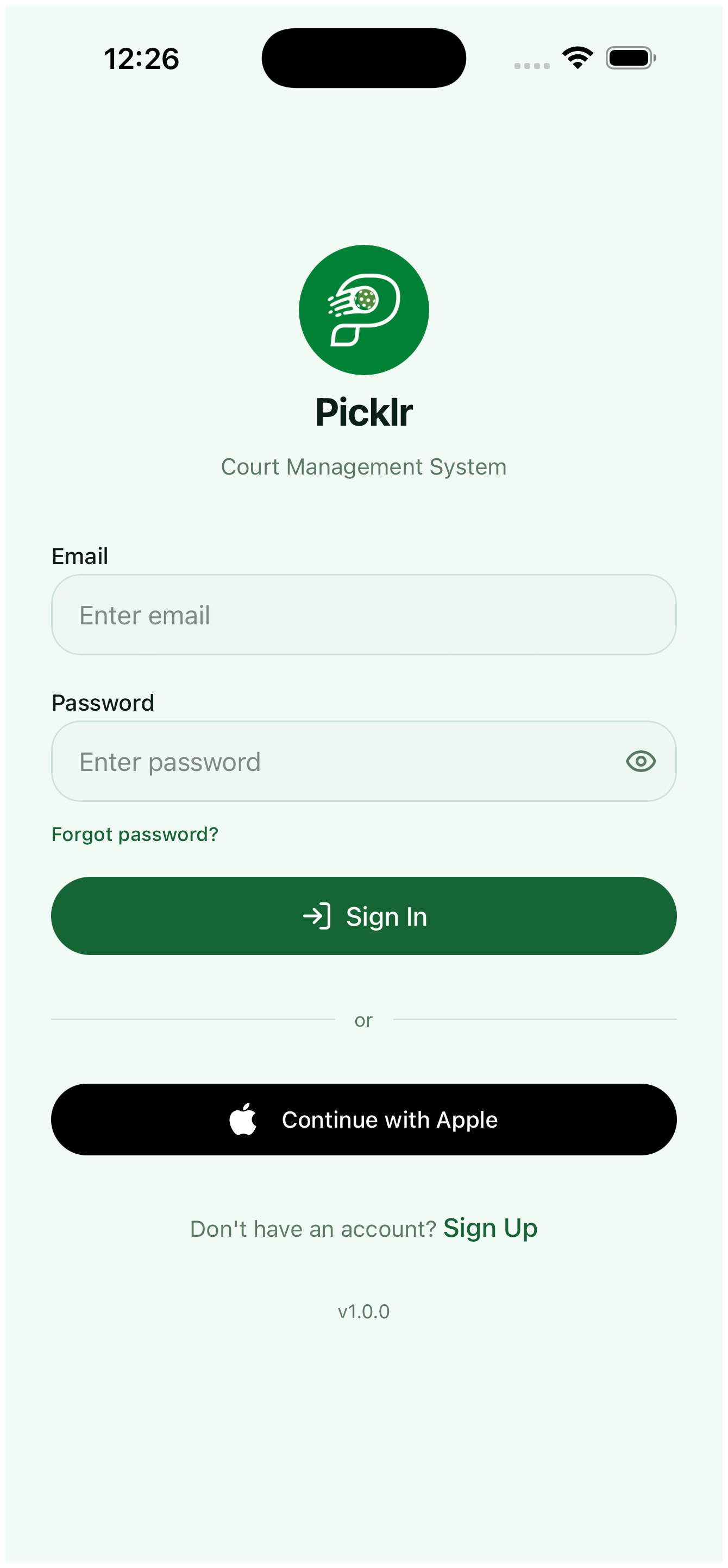
Use email and password, or tap Continue with Apple/Google. New here? Tap Sign up to create an account in under 30 seconds.
2. Welcome screen
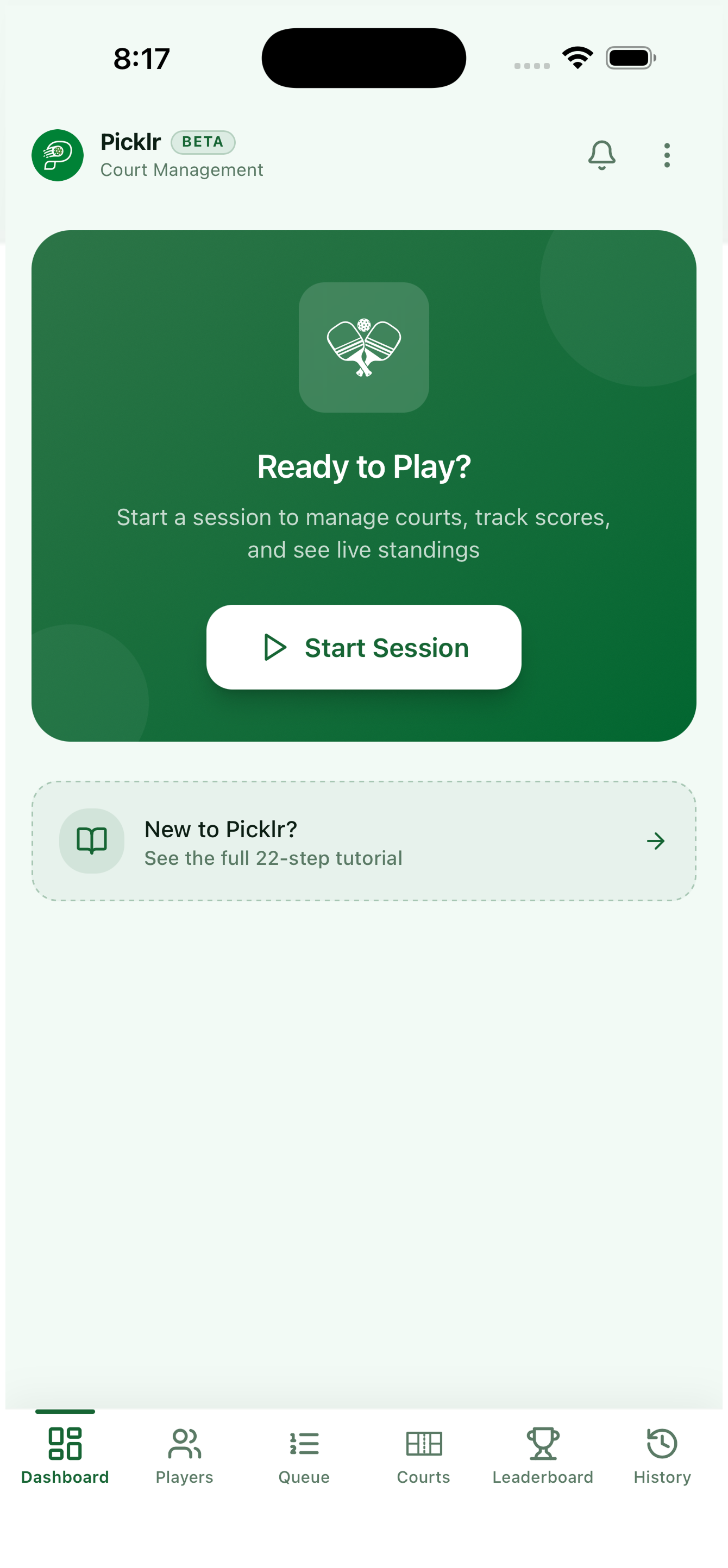
After signing in, you land on the welcome screen. Tap Start Session to begin or open the menu (⋯) for settings, history, and account options.
3. Start a session
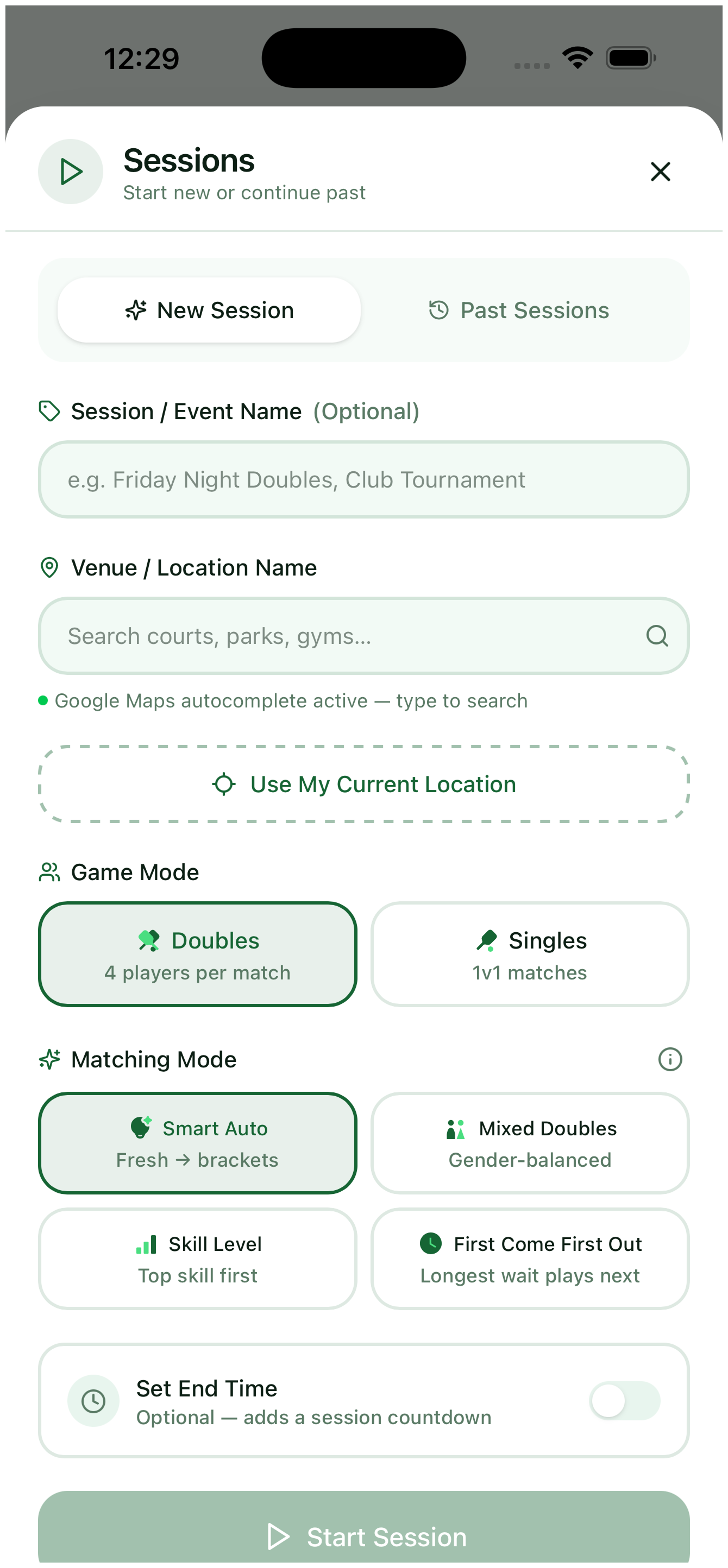
Name your session, pick a venue (or tap Use My Current Location to auto-tag GPS), then choose a matching mode below.
4. Choose a matching mode
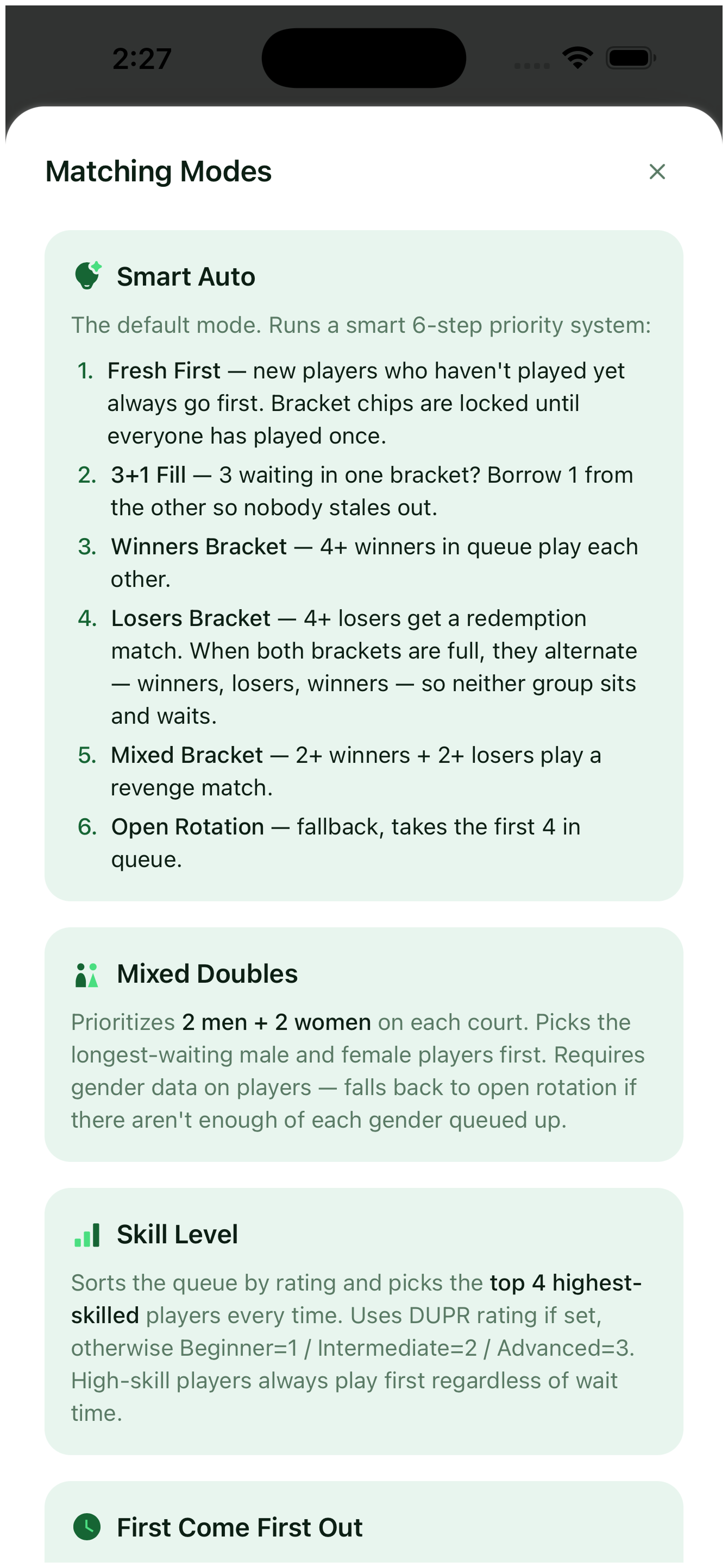
Smart Auto balances skill and play count. Mixed Doubles pairs by gender. Skill Separated groups by level. First-Come First-Out plays in queue order. You can change this mid-session. Picklr starts you with 2 courts by default — add or remove more later from the Courts tab.
Players & queue
Add players, set their skill, and manage who plays next.
5. Add players
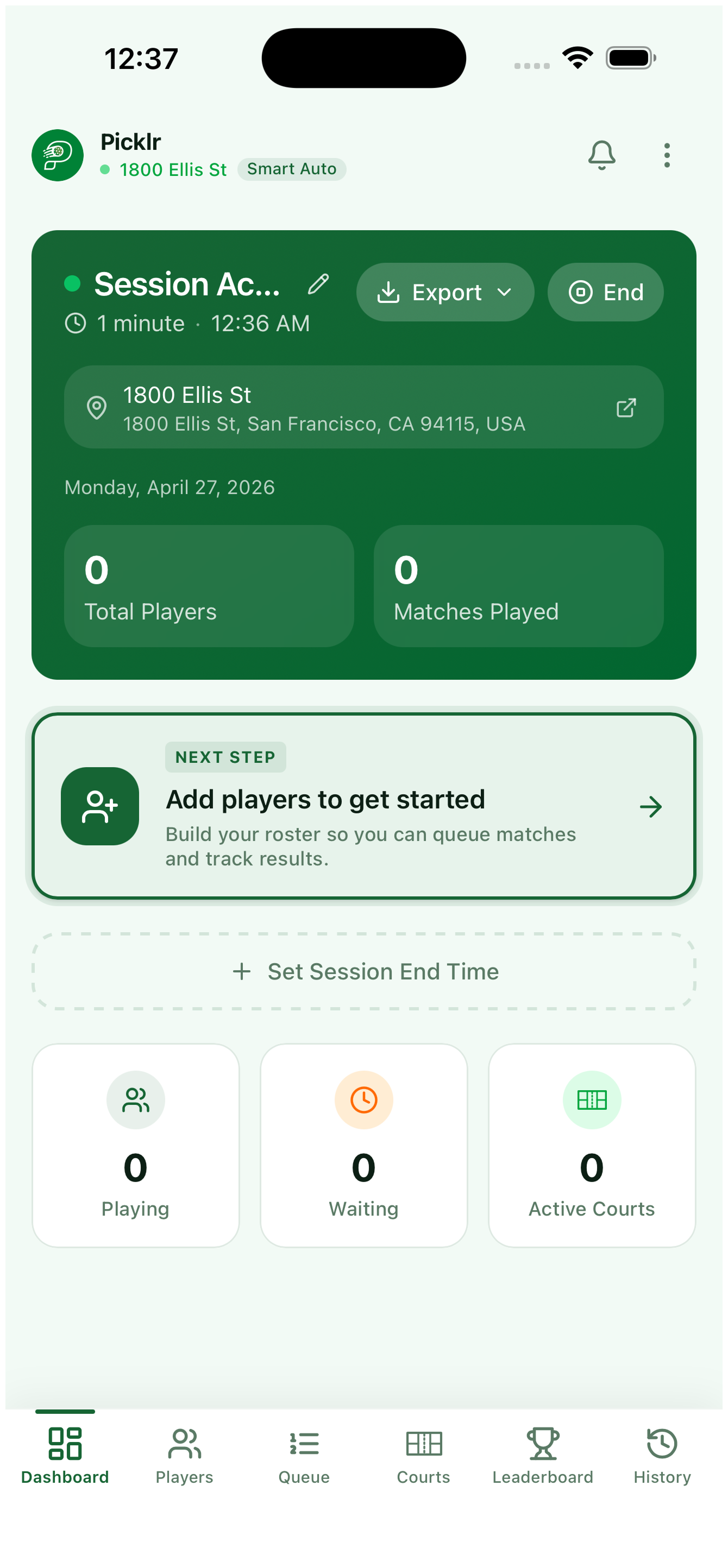
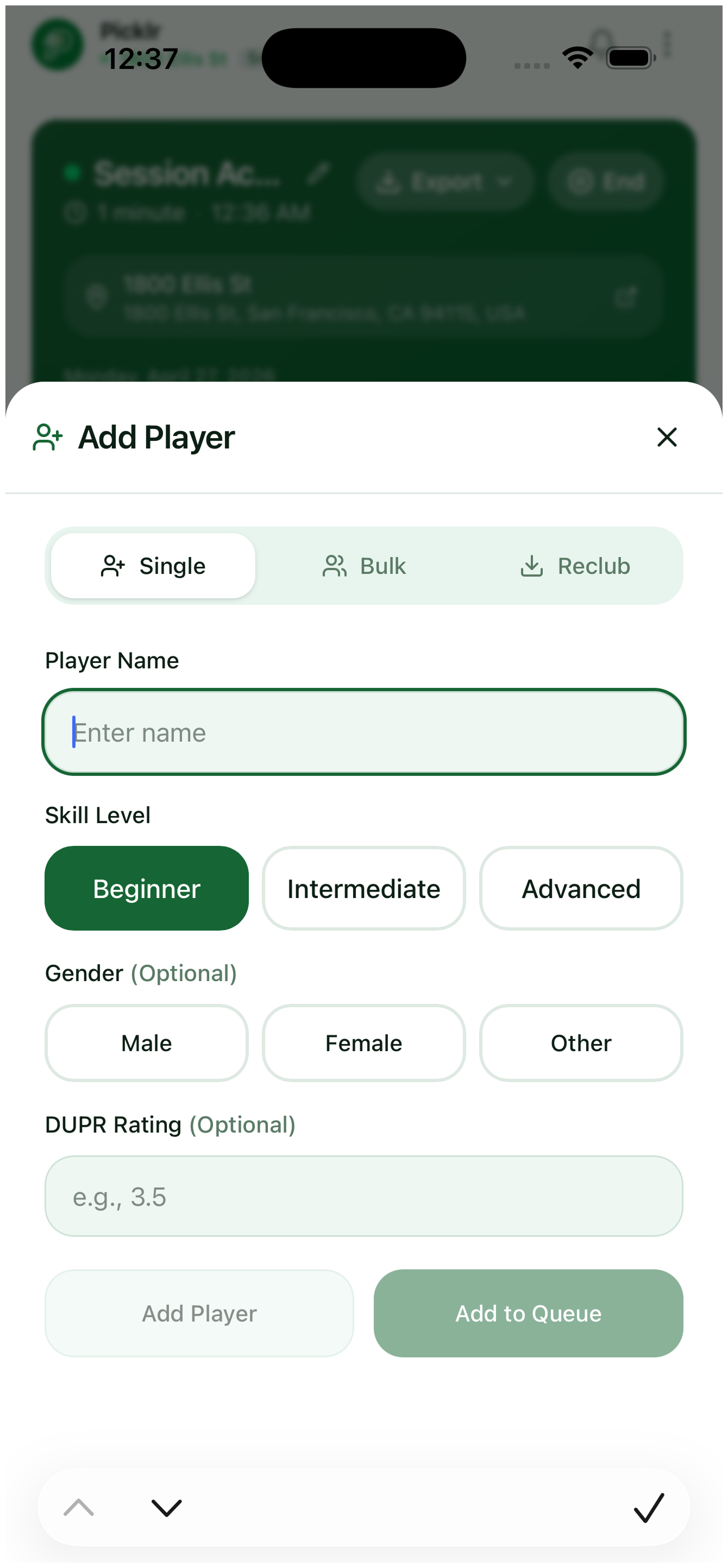
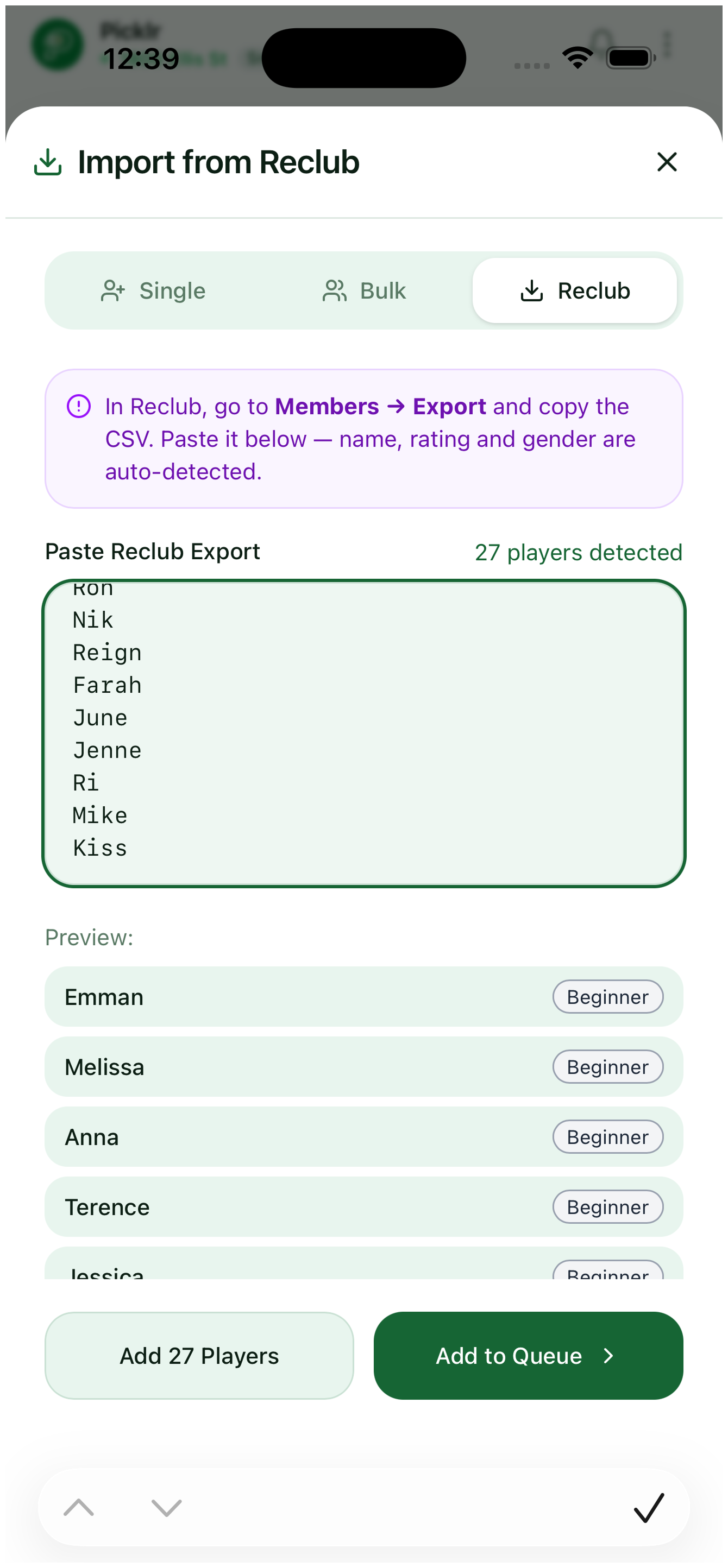
From the Dashboard, tap "Add players to get started" — Picklr opens the Add Player sheet. Enter a name and set skill (Beginner / Intermediate / Advanced); add gender if Mixed Doubles is on, or DUPR if you want rating-based matching. To add a whole roster at once, tap Reclub and paste a Reclub Members → Export CSV — Picklr auto-detects names, ratings, and gender so you can queue them in seconds.
6. Player list
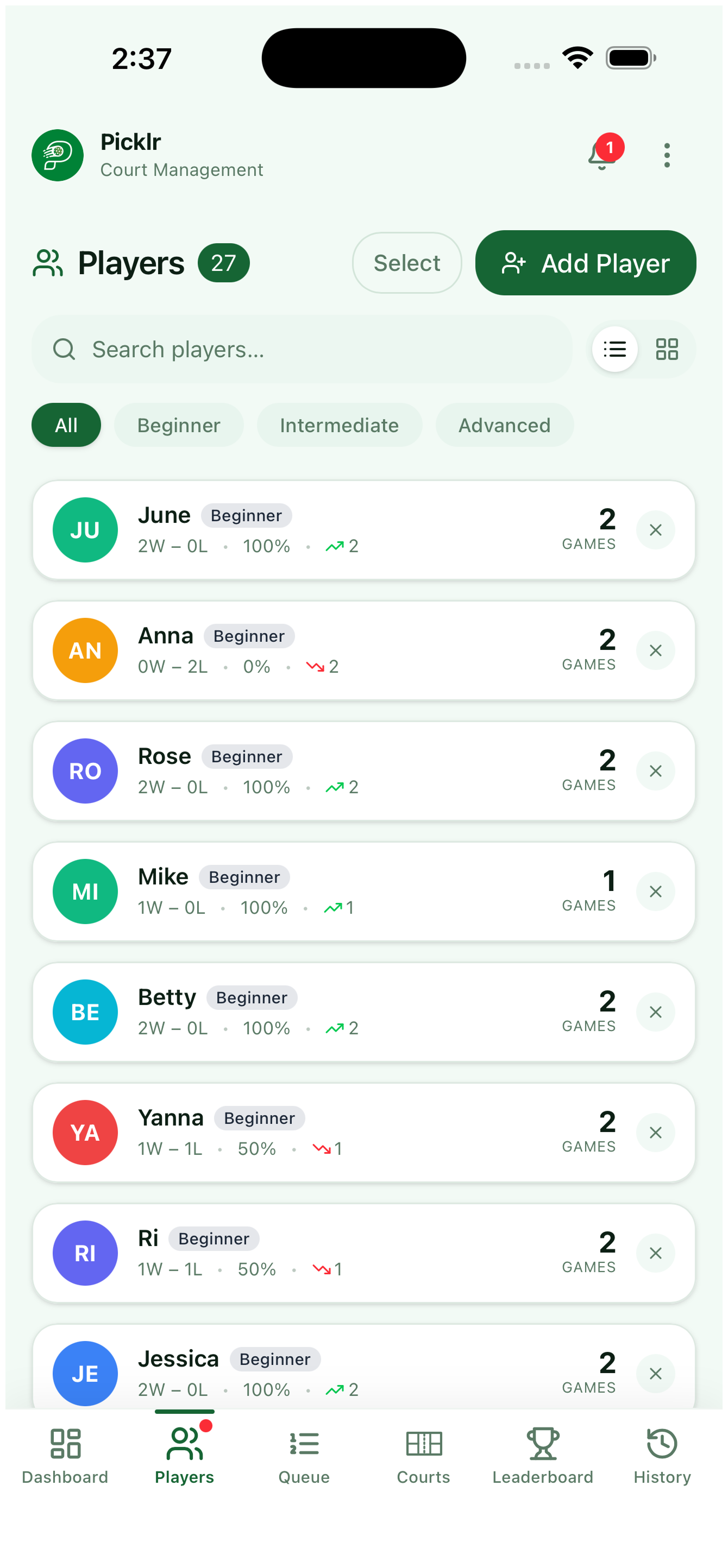
See every active player with their skill badge, gender, and play count. Tap a player to edit their details or pull them out of the queue.
7. The queue
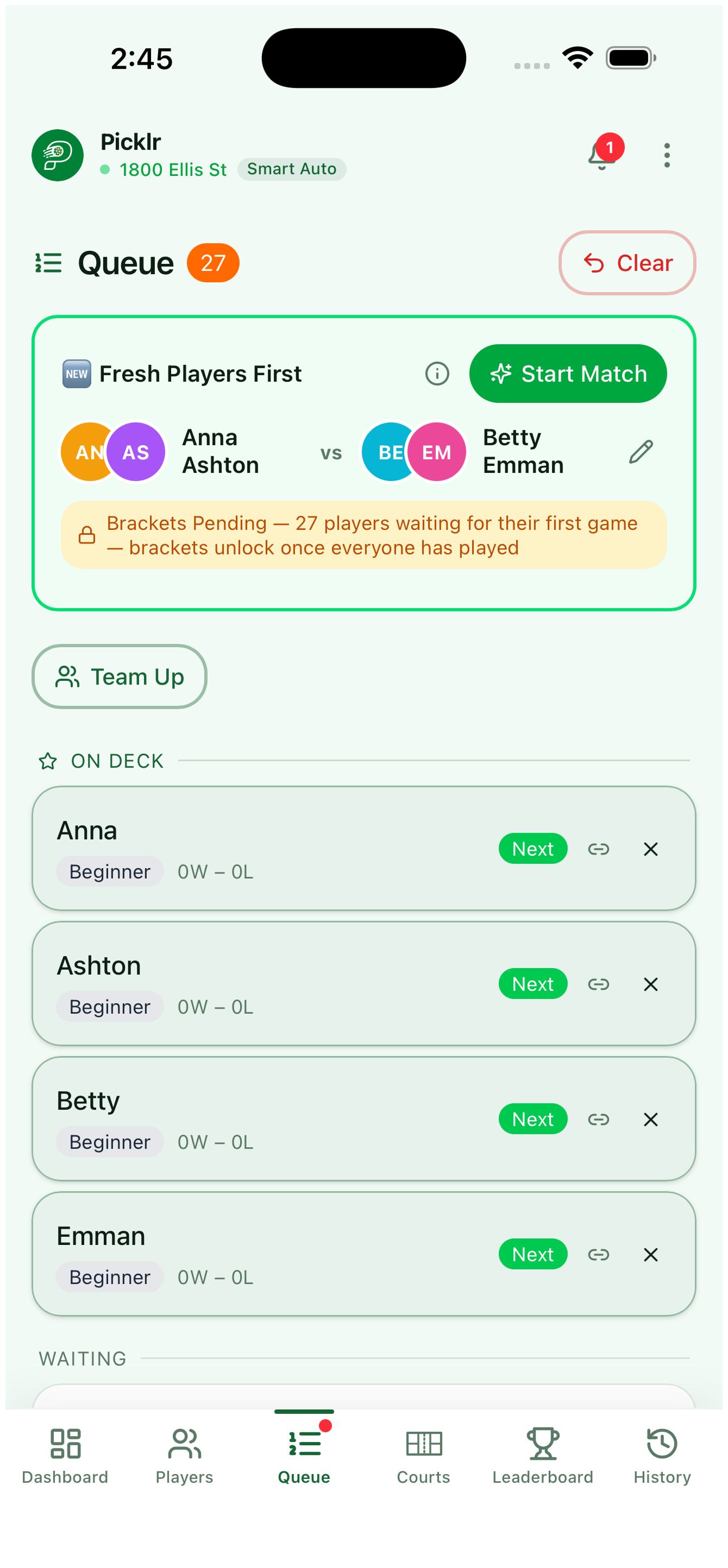
The Queue tab shows who is waiting next. Picklr orders the queue based on the matching mode and the number of games each player has already played.
Courts & matches
Set teams, swap players, time your matches, and confirm winners.
8. Lock a permanent team
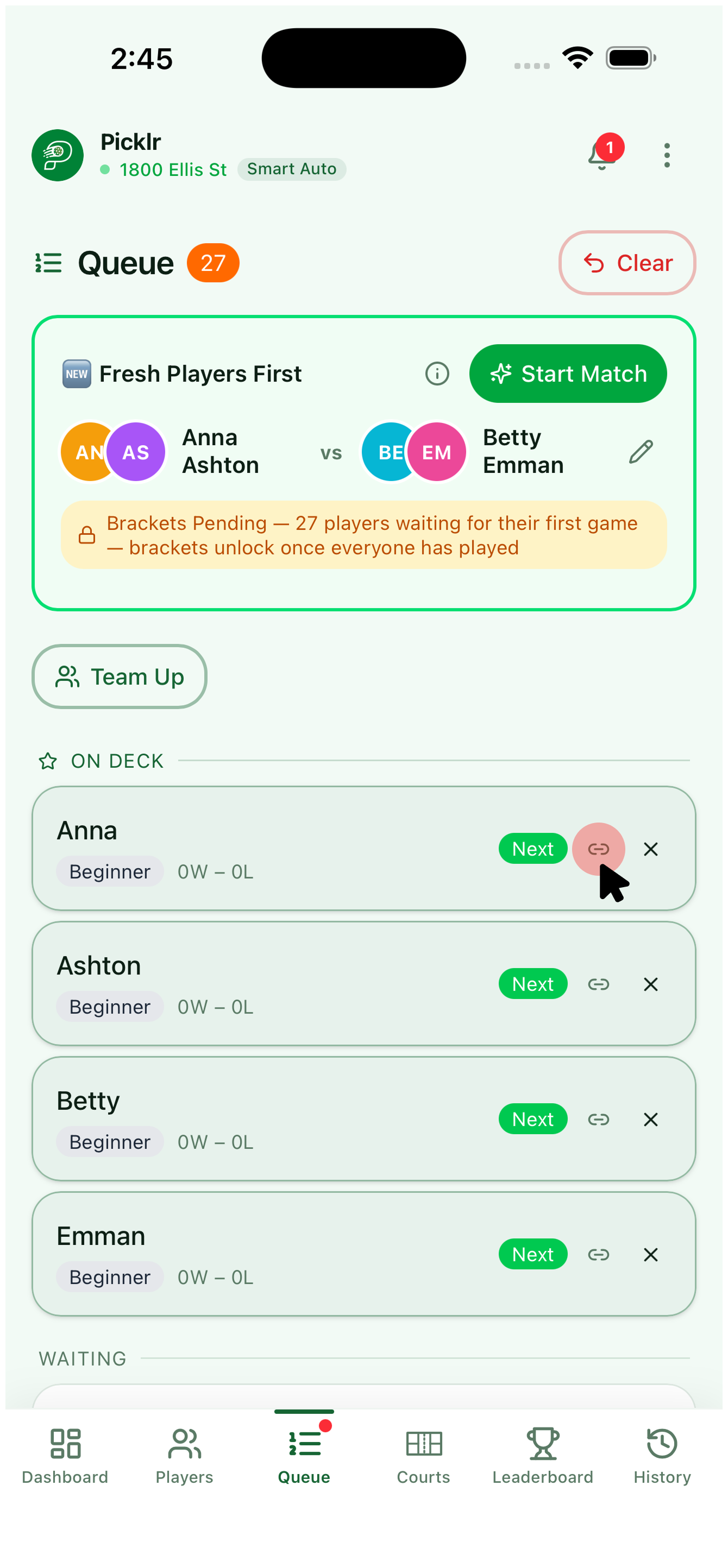
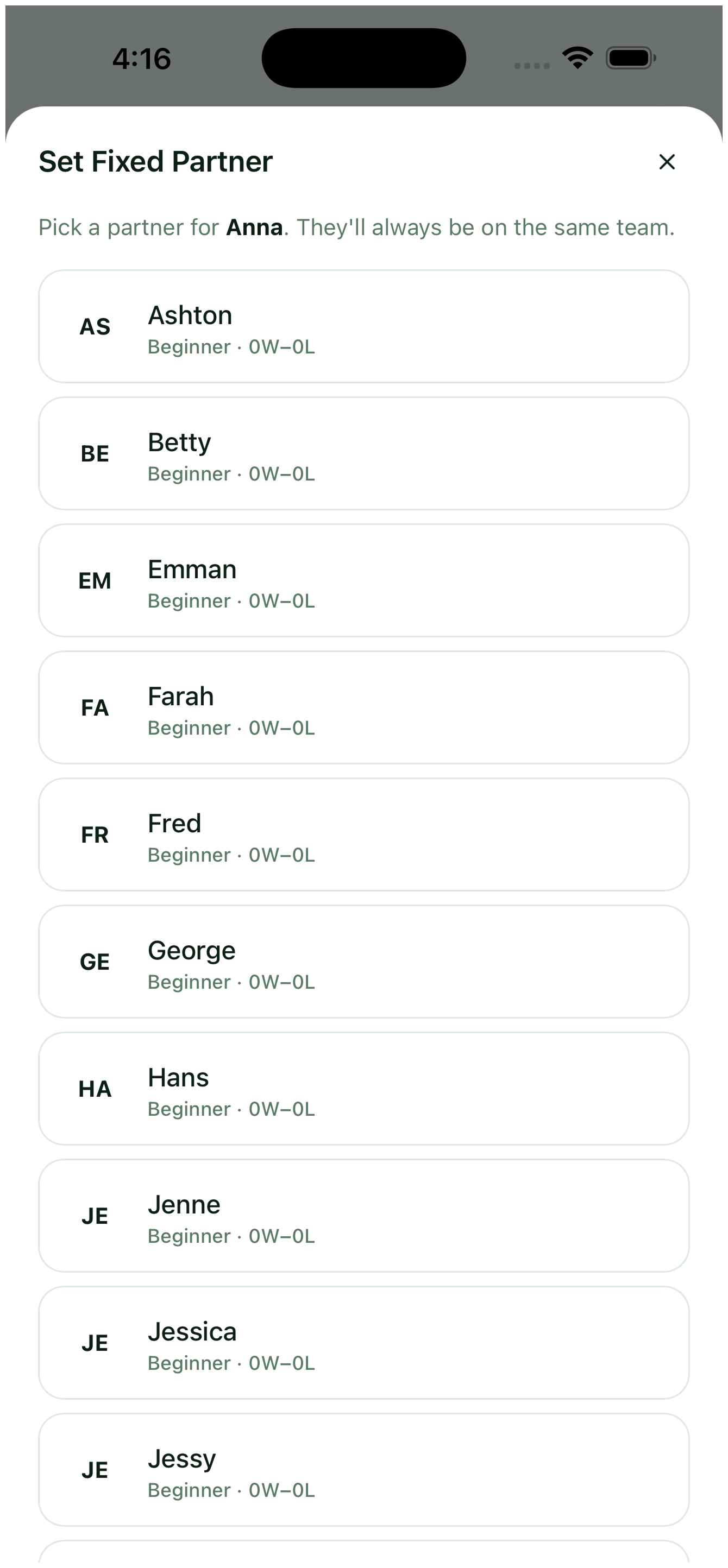
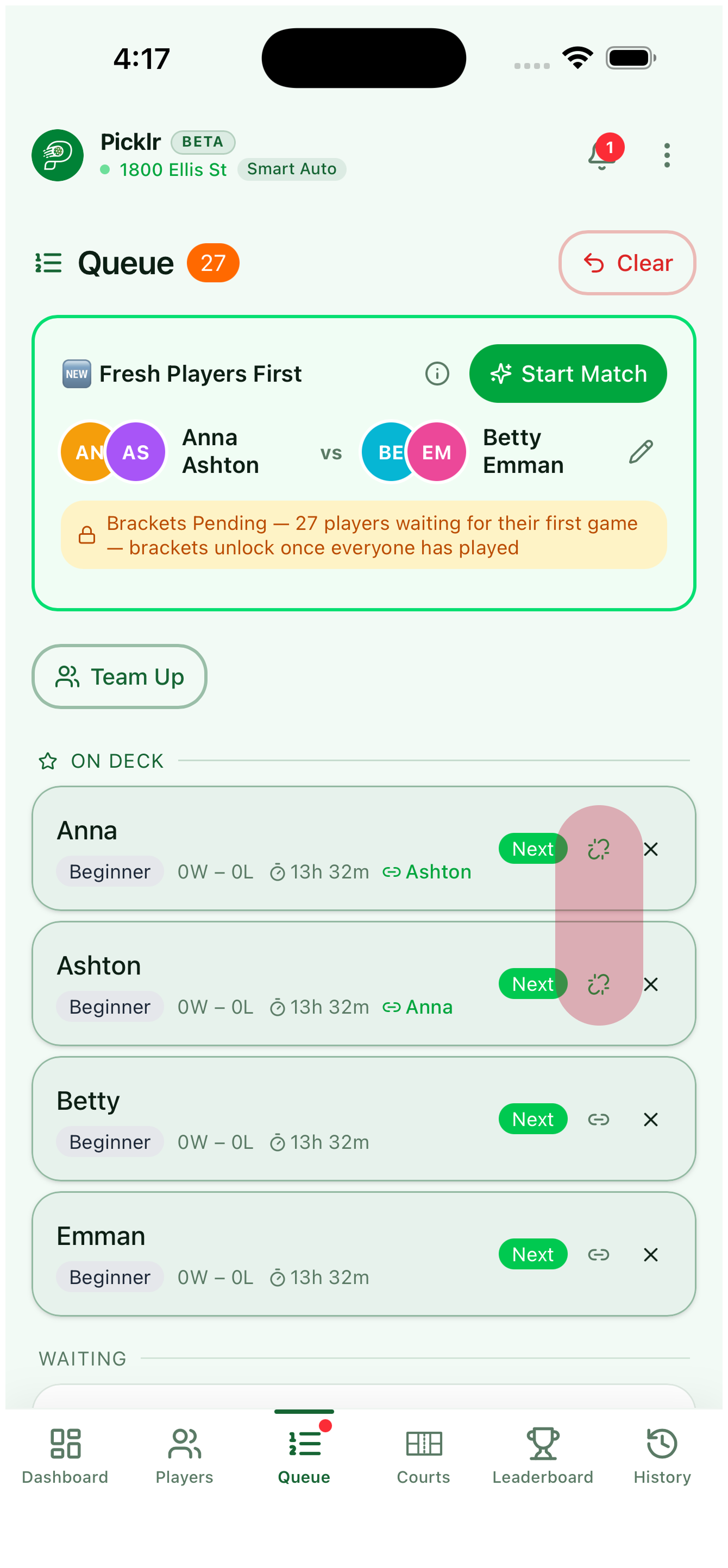
Want two players to always play together? Open the Queue and tap the link button on a player's row. Pick their fixed partner from the list — Picklr will always pair them when matching. Both rows now show the locked partner's name; tap the link button again on either to unlink them.
9. Build or edit a team
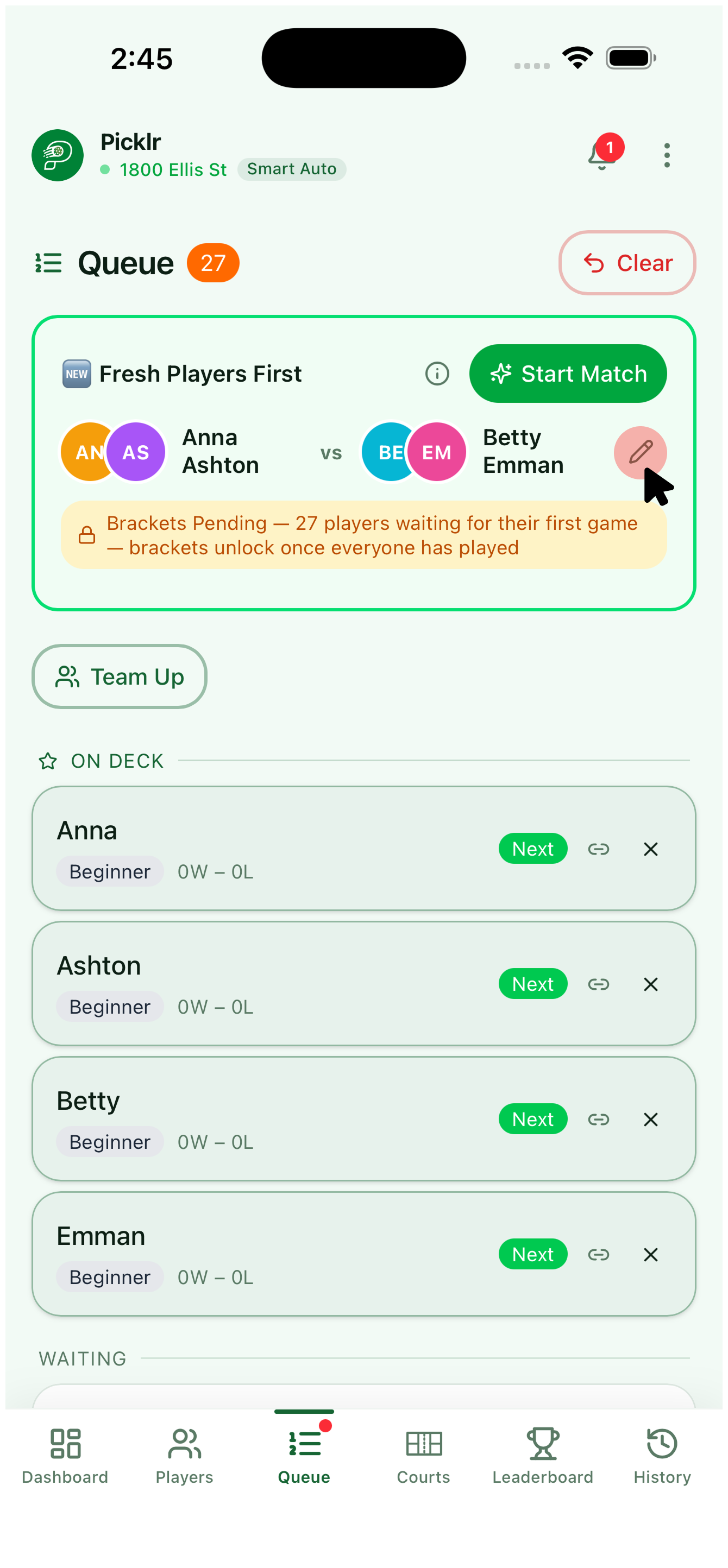
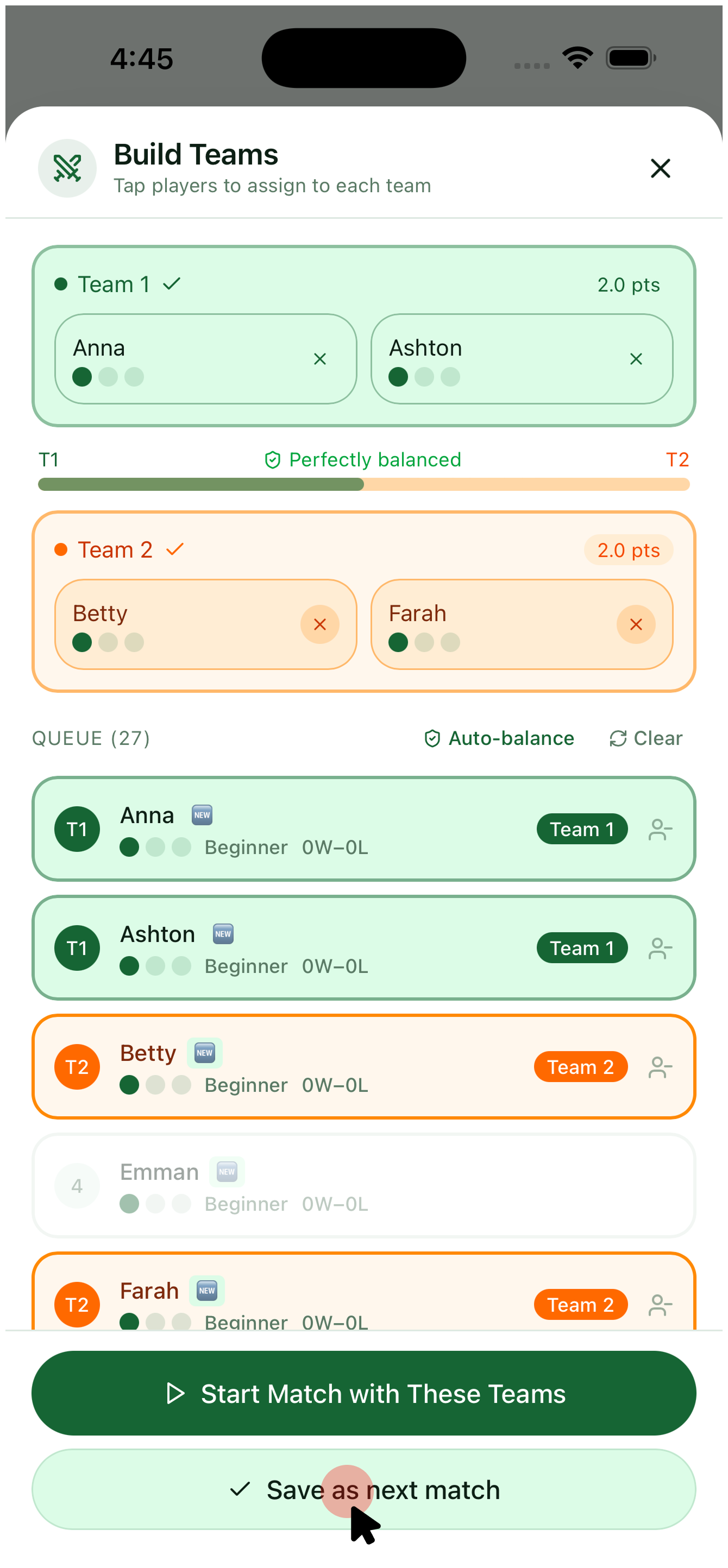
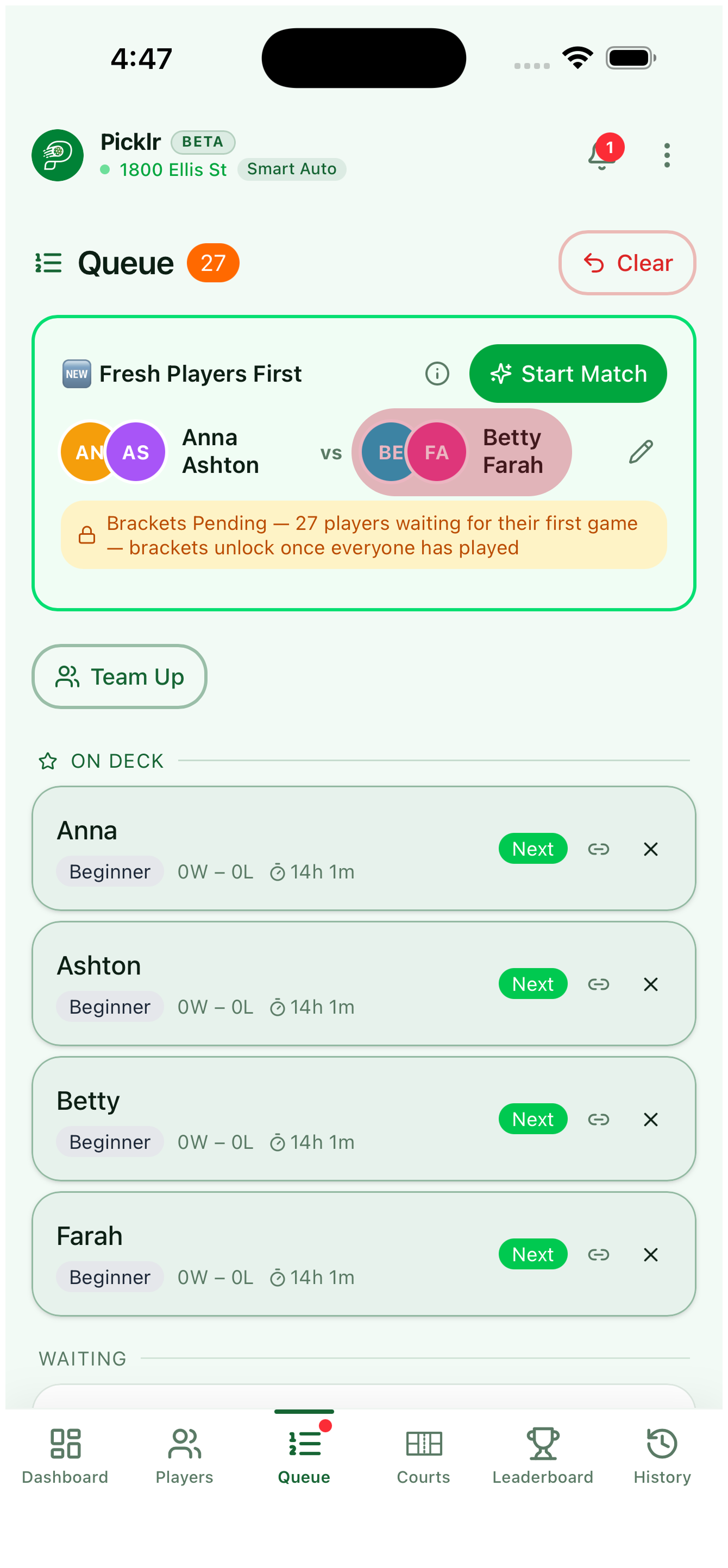
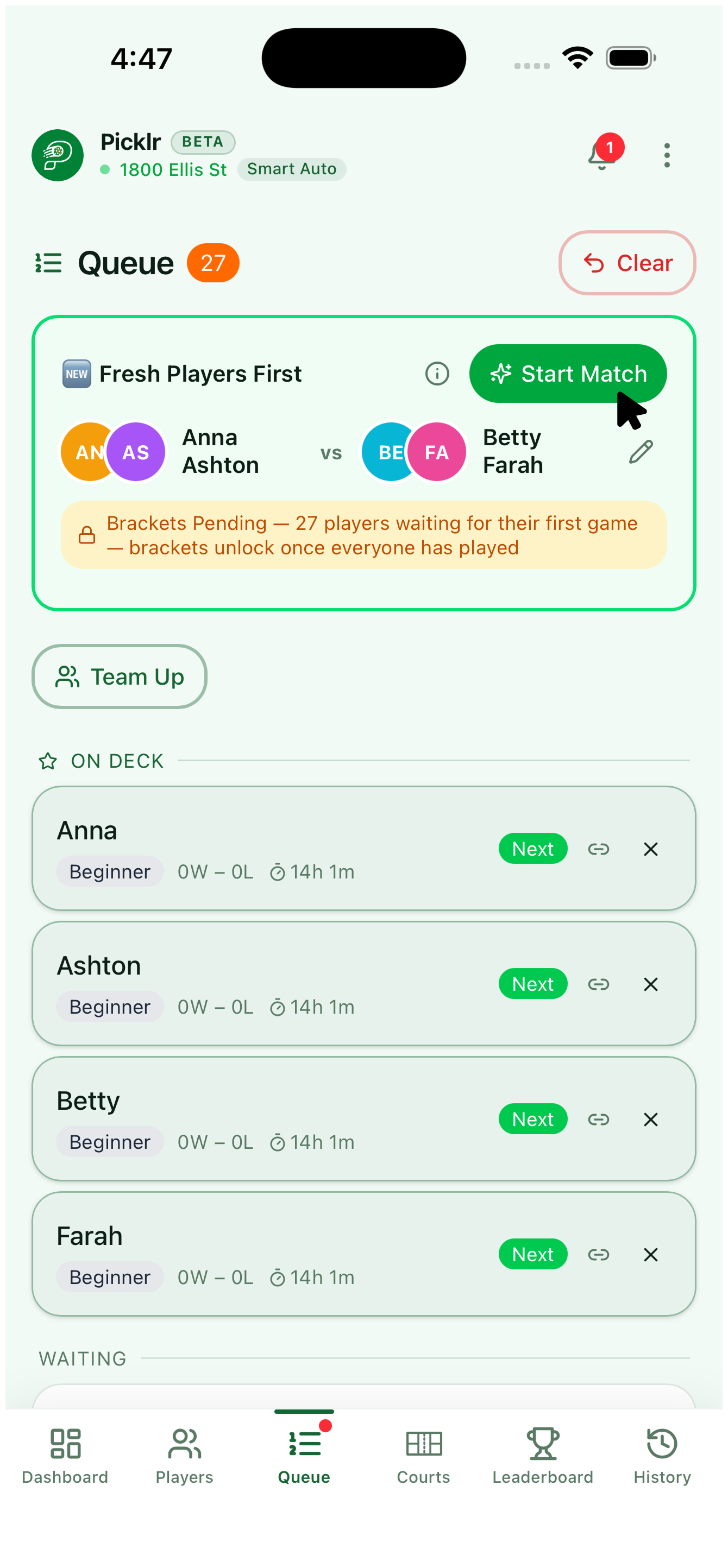
Want to set the next match yourself? Tap the pencil icon on the suggestion card to open Build Teams. Tap players in the queue to assign them to Team 1 or Team 2 — Picklr shows a balance bar so you can see if the teams are even. Tap Start Match with These Teams to play now, or Save as next match to drop them at the front of the queue. The suggestion card updates instantly with your picks.
10. Set teams and start the match
Picklr auto-fills each court based on the matching mode — Team A and Team B with their skill levels. When everyone is on court and ready, tap Start. Picklr begins tracking the match and locks the assignments.
11. Timed vs. unlimited matches
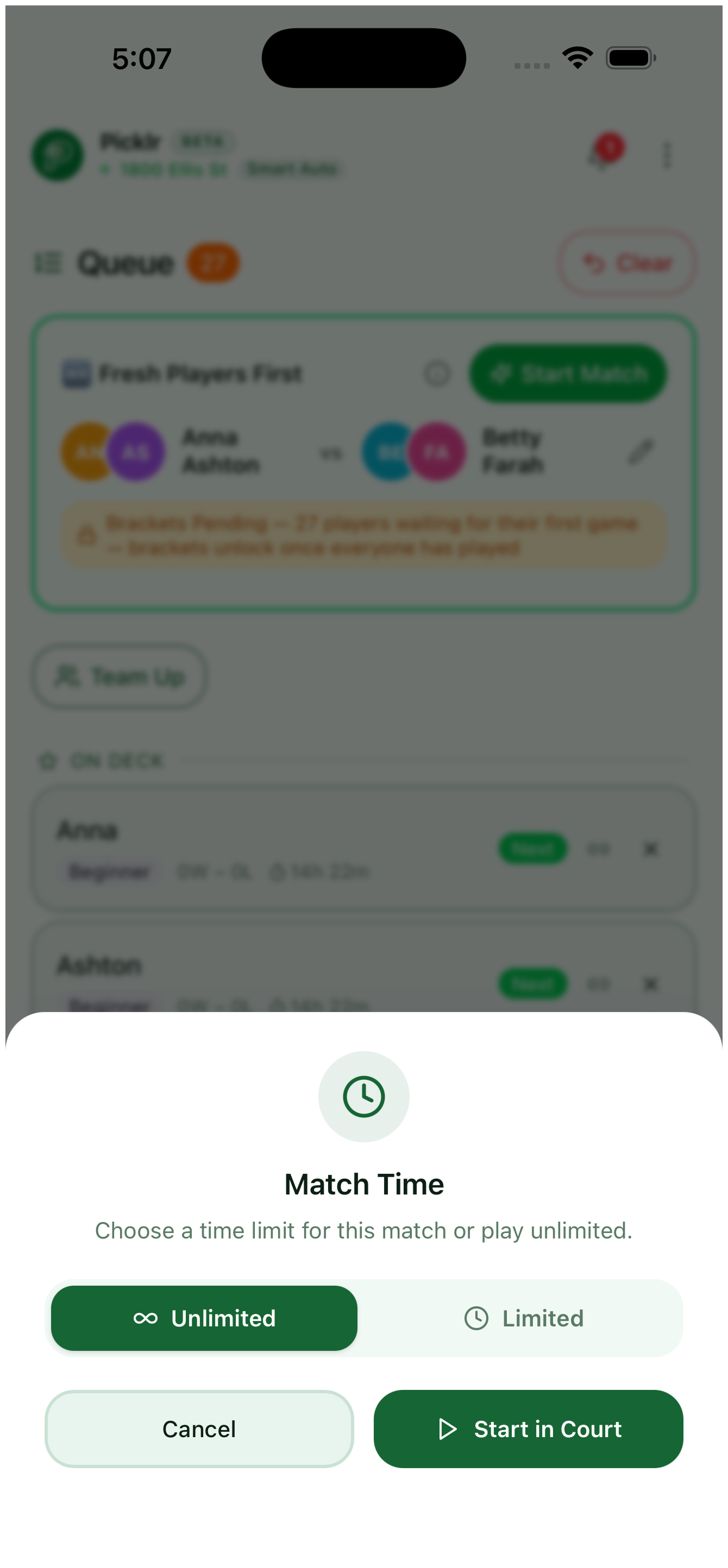
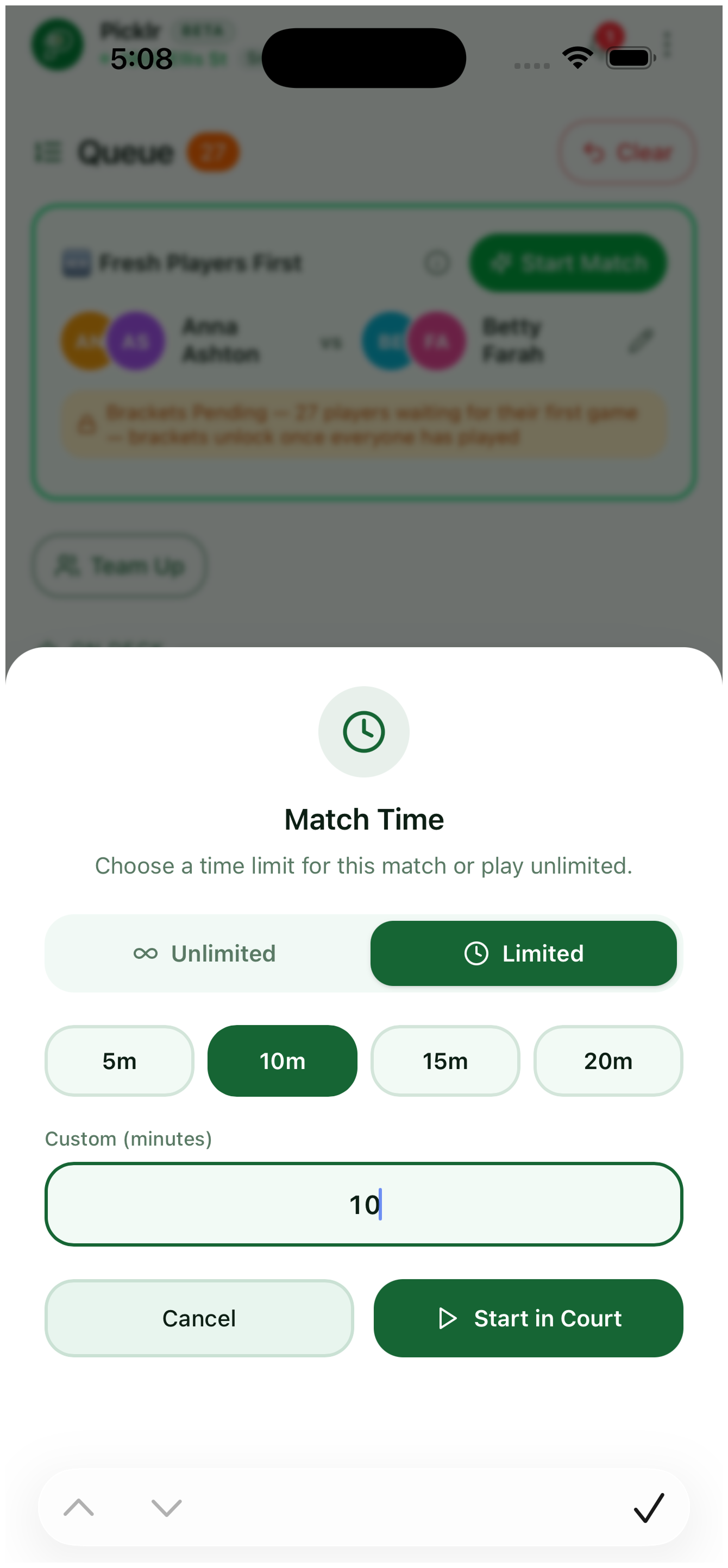
Before the match starts, Picklr asks for a Match Time. Choose Unlimited to play to a target score with no clock, or Limited to run a countdown that ends the match automatically. For Limited, pick a quick preset (5m, 10m, 15m, 20m) or type a custom minute count. Tap Start in Court when you're ready.
12. Add a score
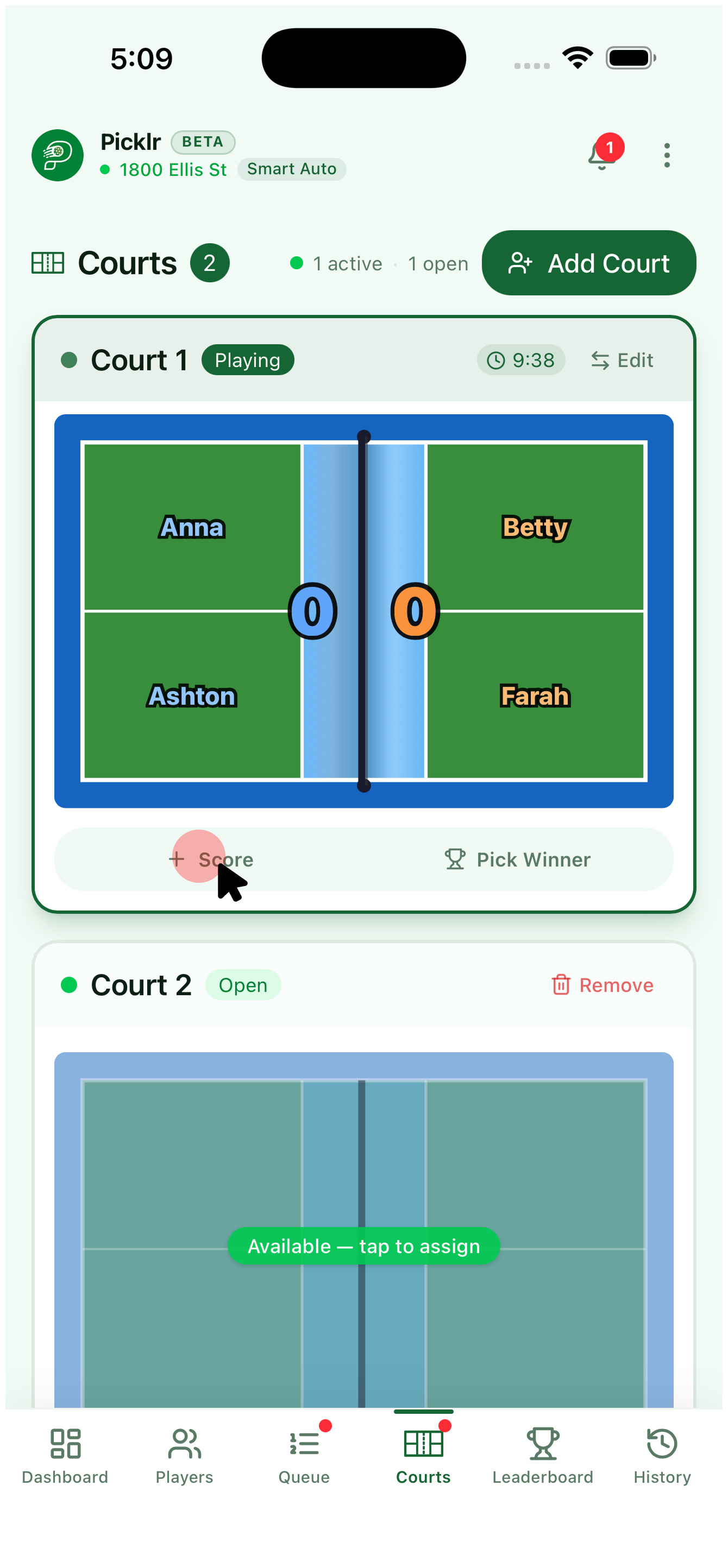
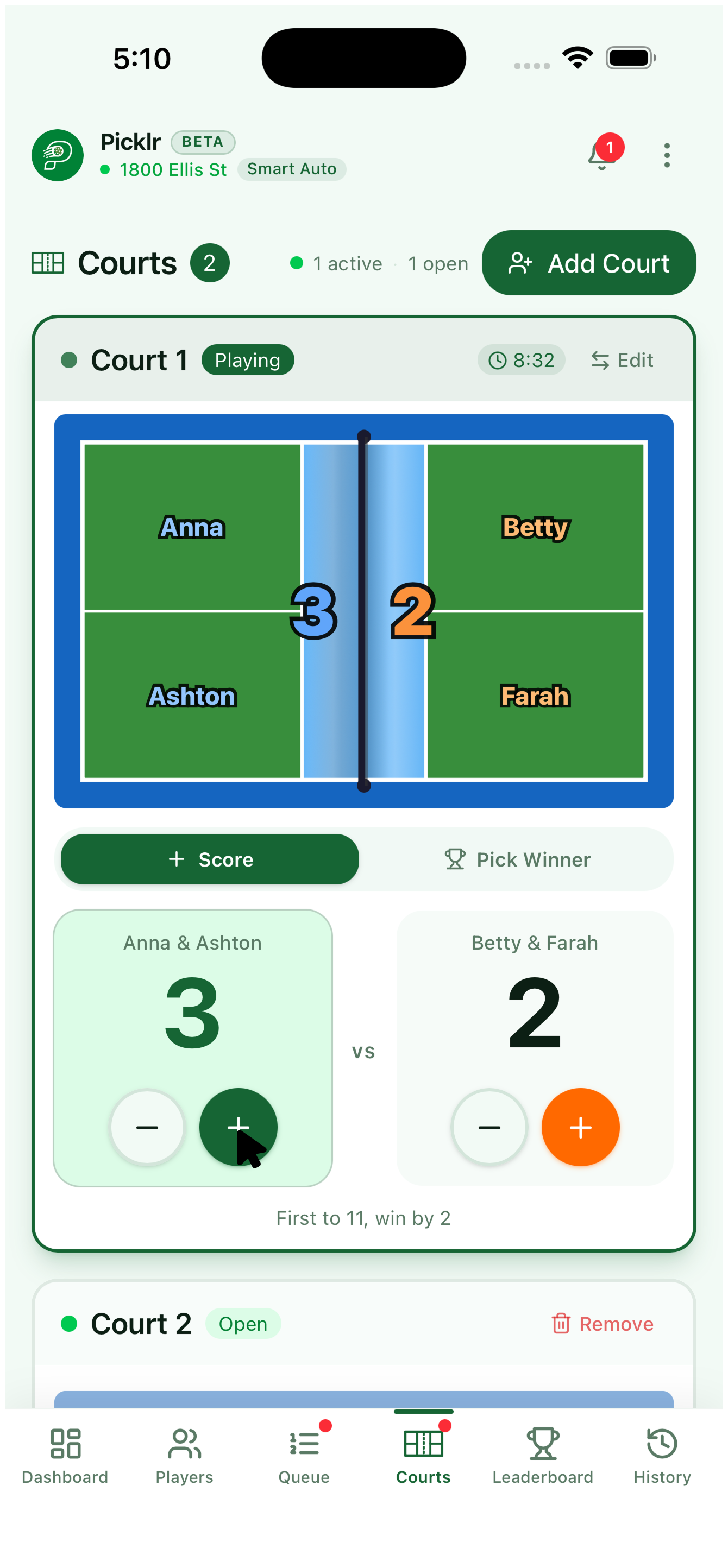
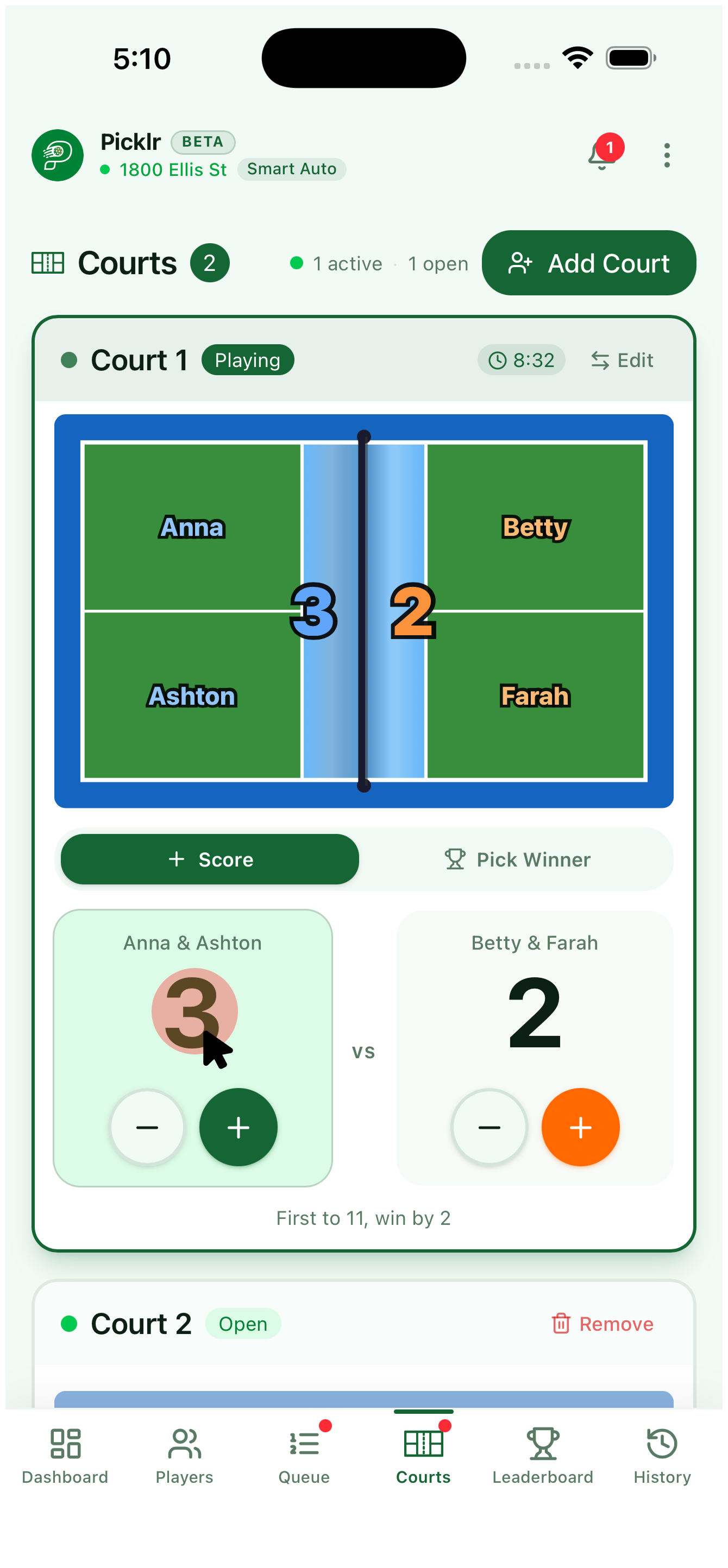
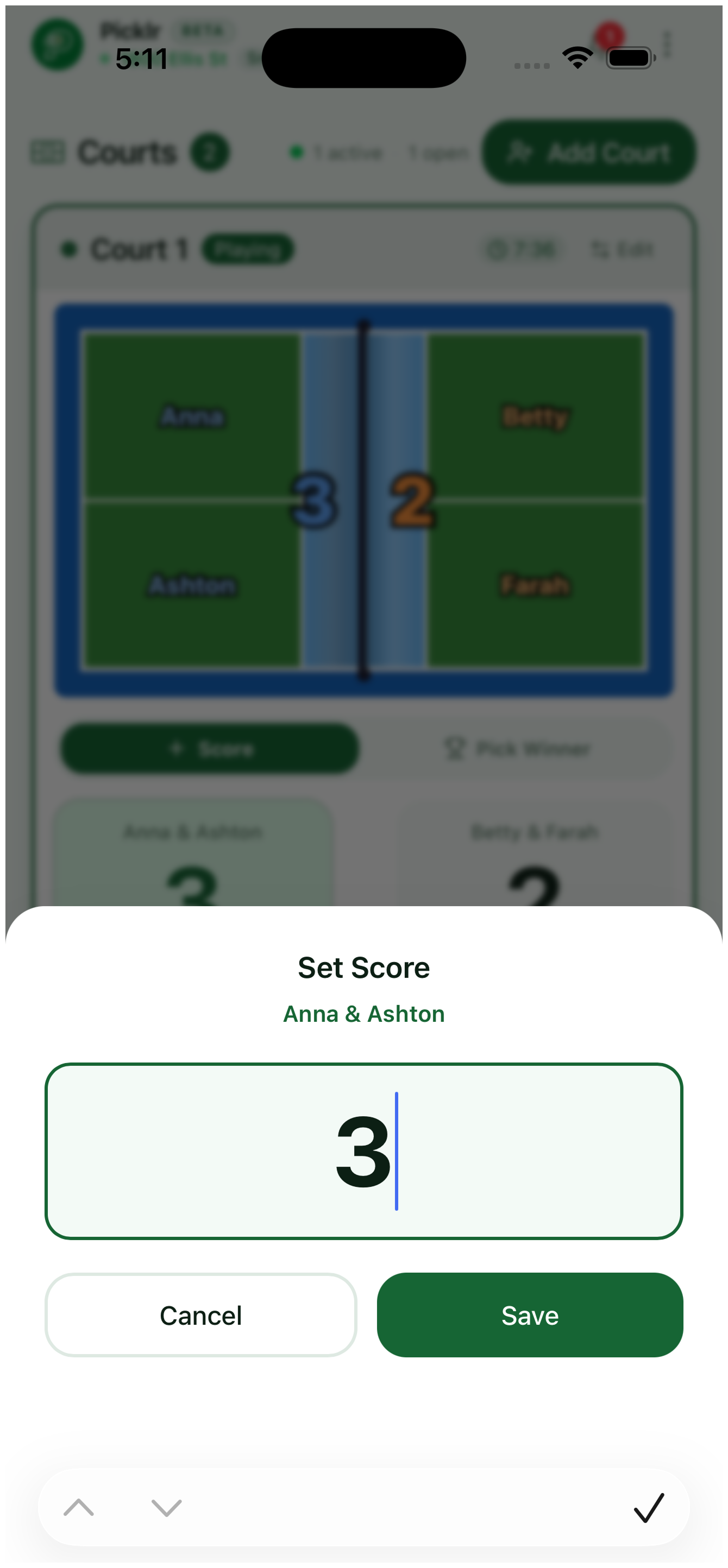
Tap the green + Score button on the court to open the score panel. From there, tap a team's + to bump their score, or − to subtract a mistap. Need to jump straight to a value? Tap and hold the score number to open Set Score and type the exact number. The court display and leaderboard update as scores change.
13. Switch a player mid-match
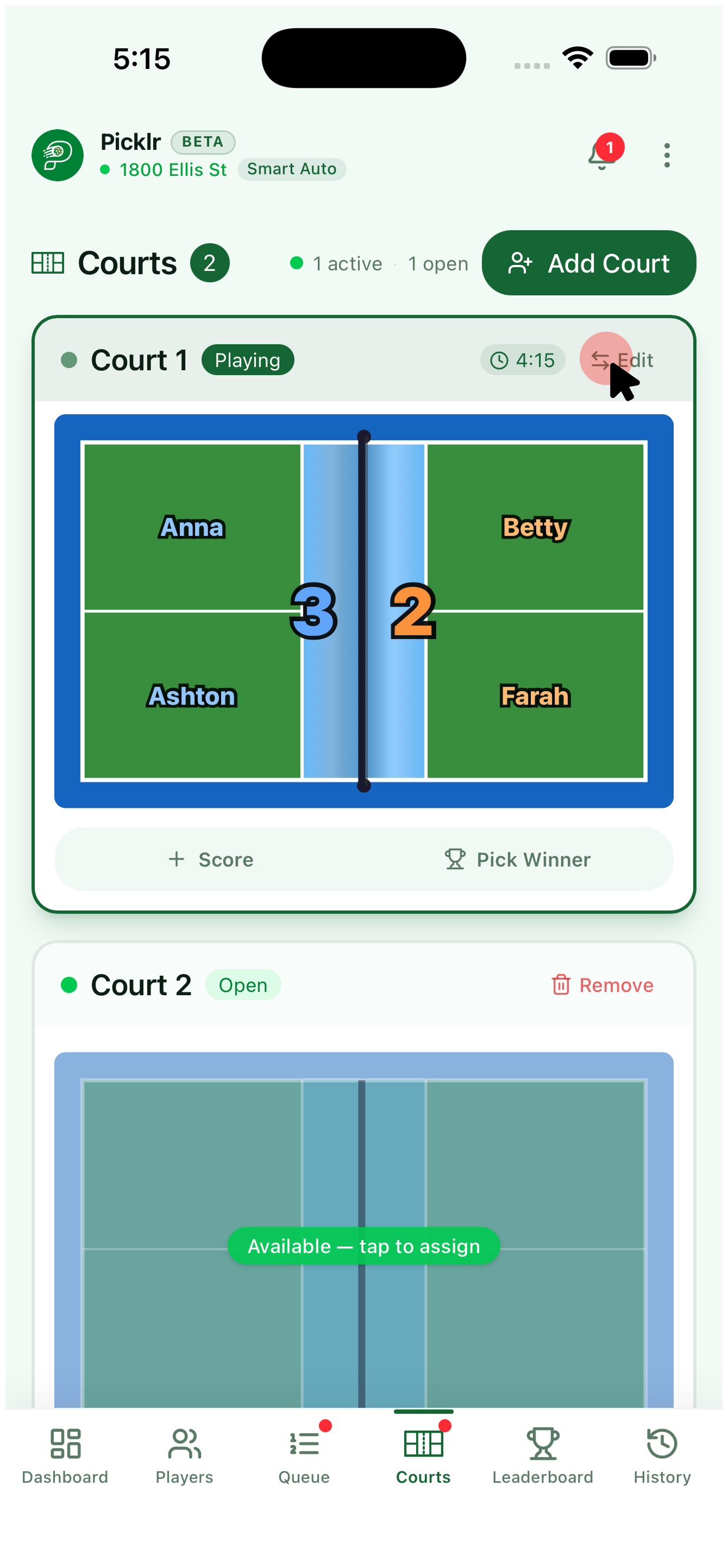
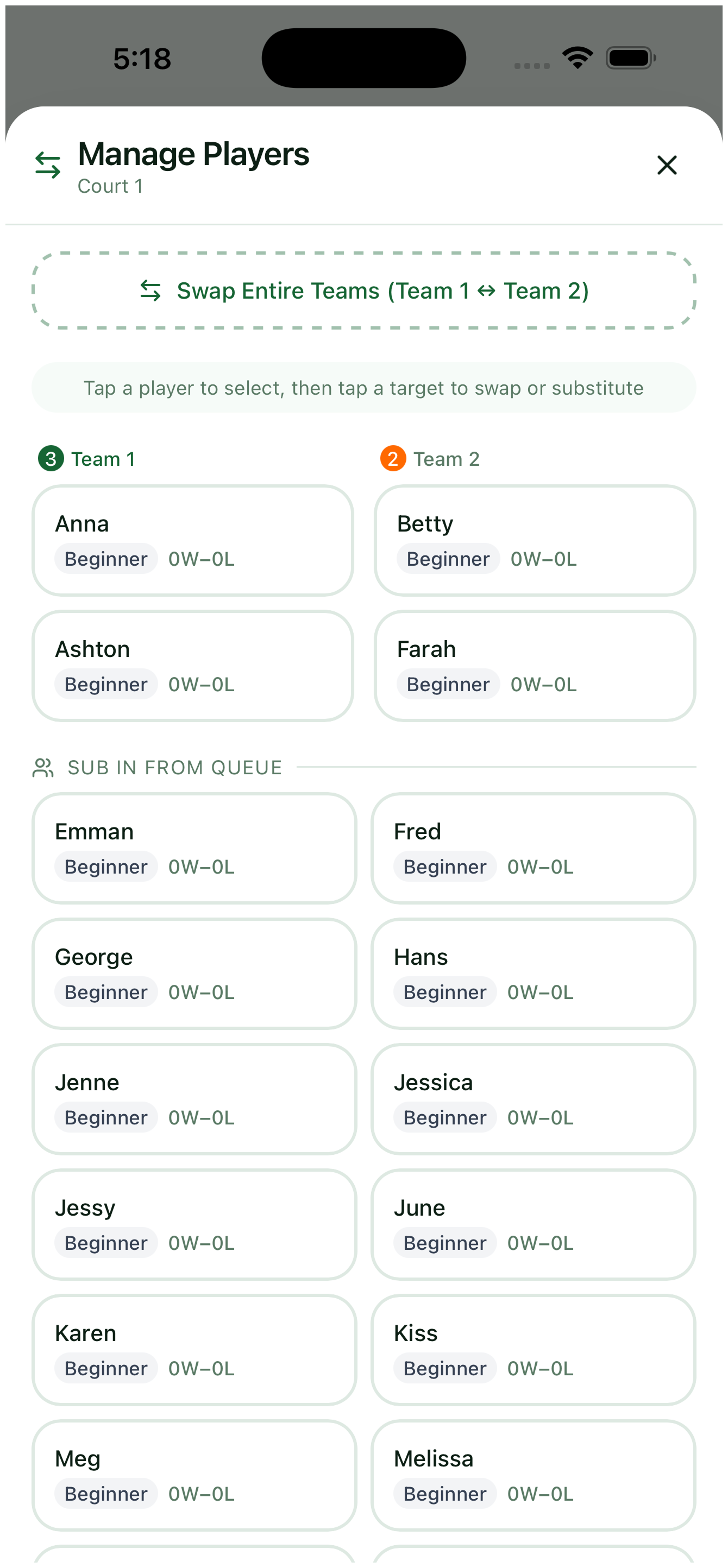
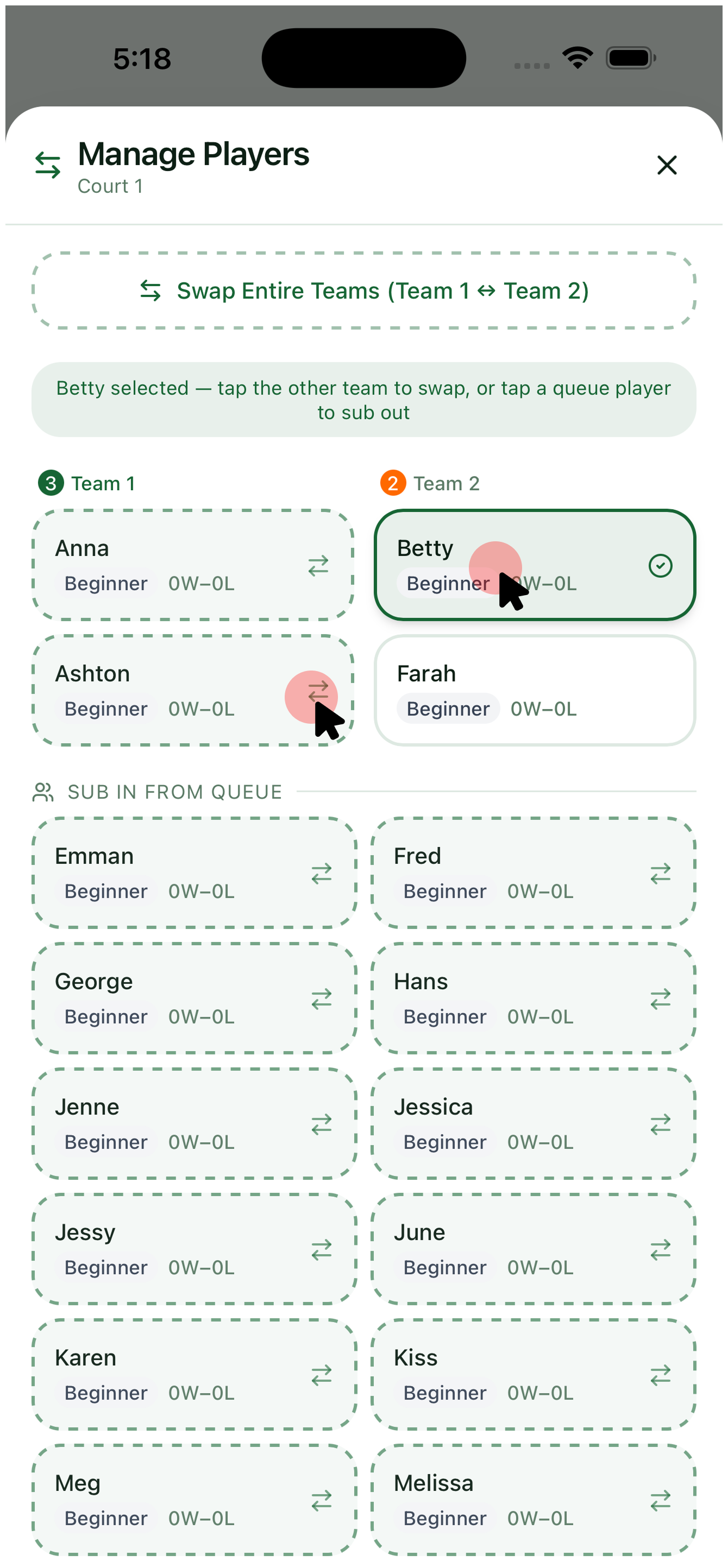
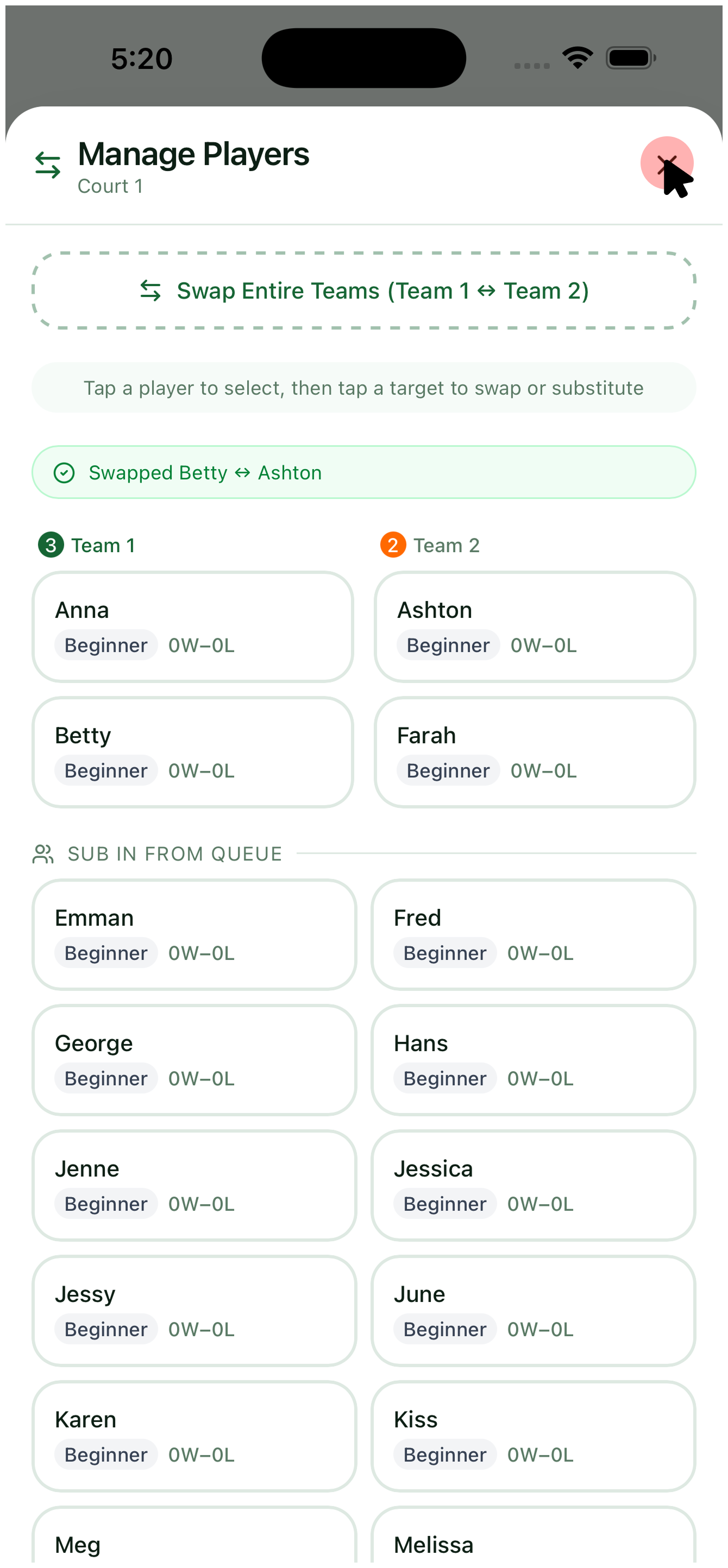
Need to swap someone mid-match? Tap Edit on the court to open Manage Players. You'll see both teams and a Sub In From Queue list. Tap a player to select them, then tap another player on the opposite team to swap, or a queue player to sub out. Picklr confirms the swap, keeps the score intact, and updates the court instantly.
14. Confirm the winner
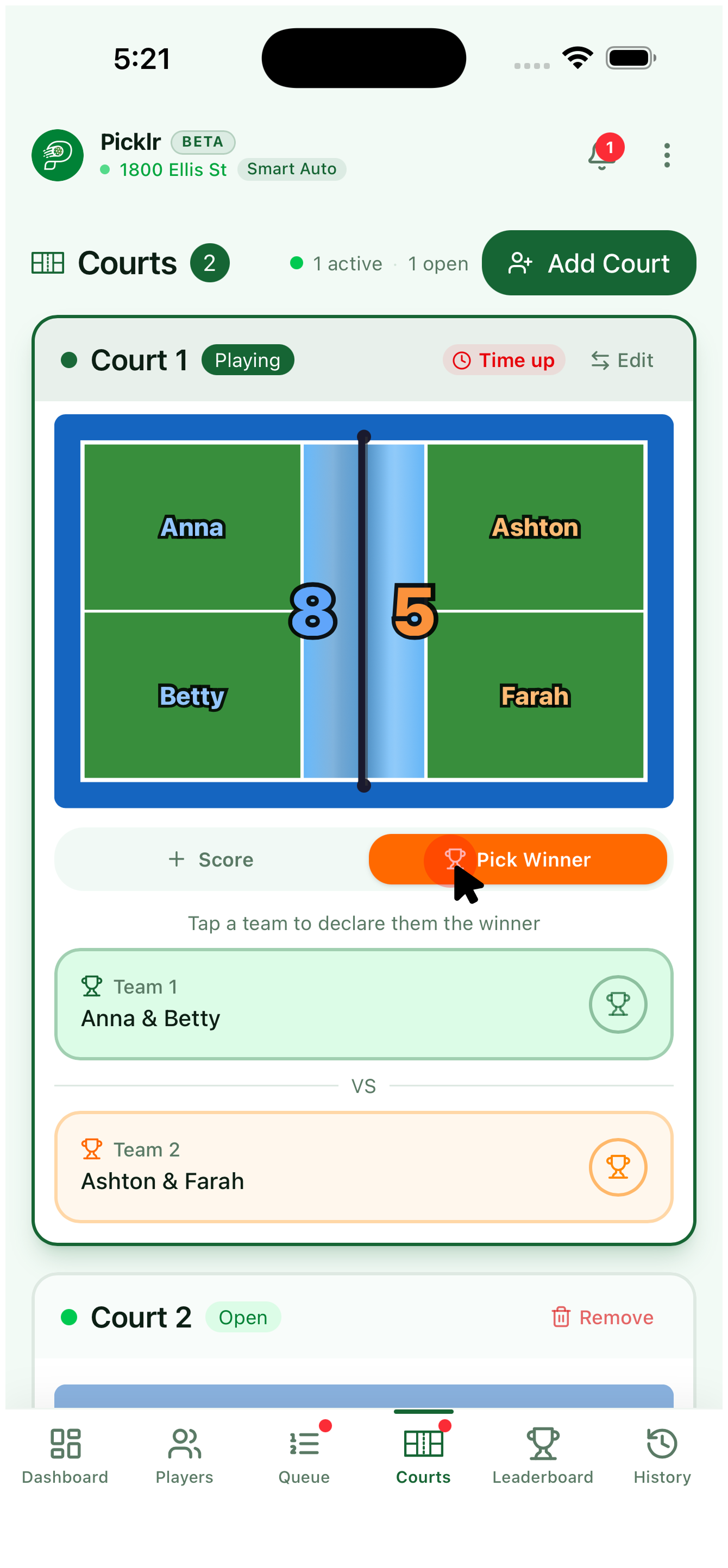
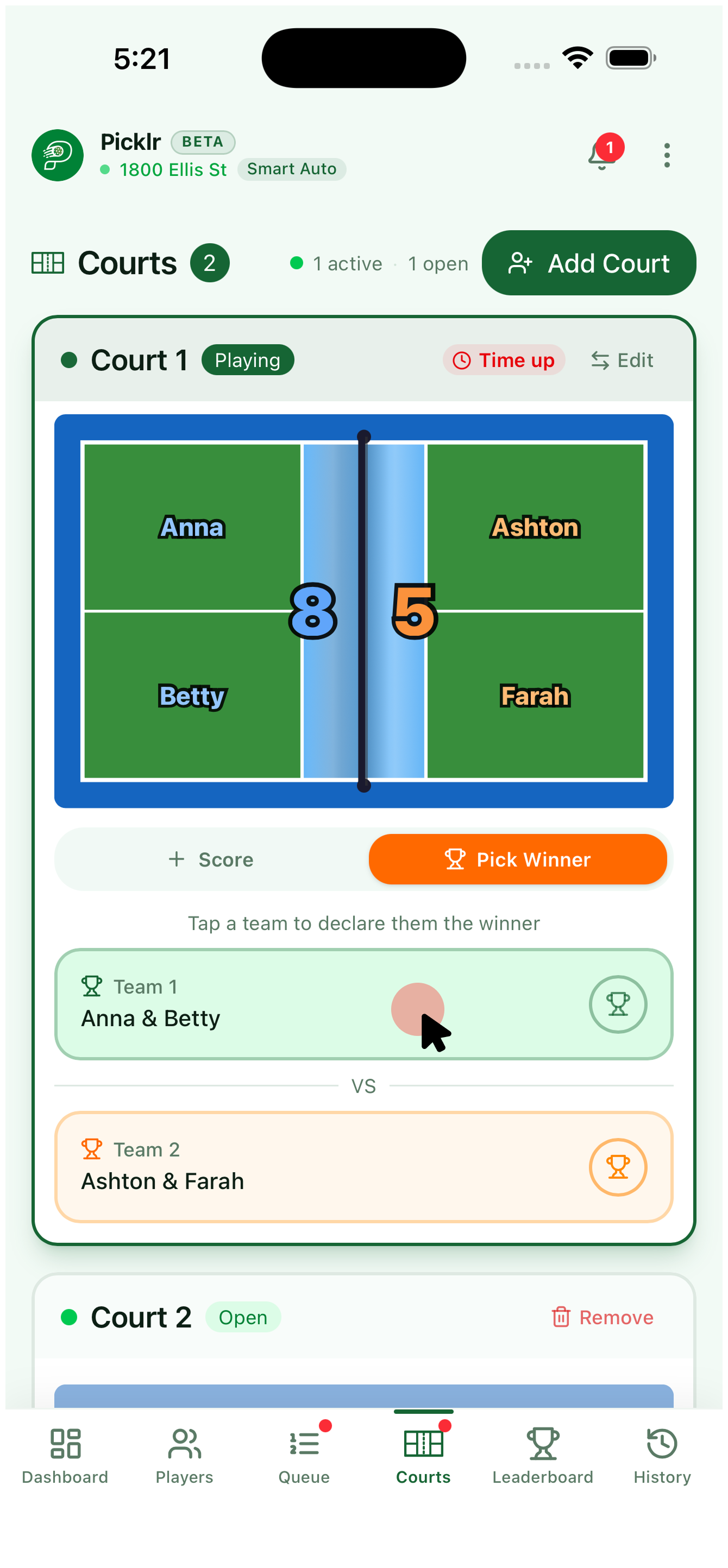
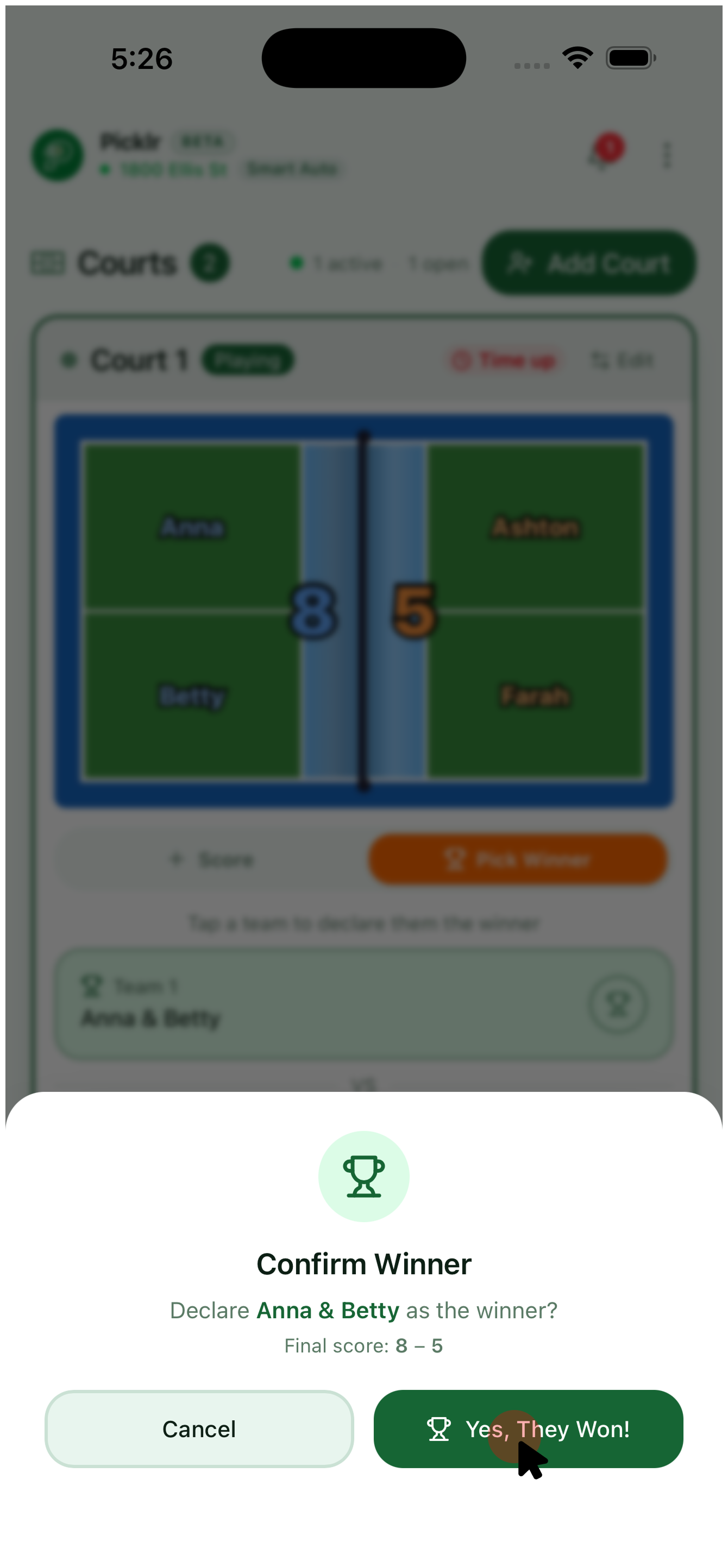
When the match ends — either time runs out or a team hits the target score — tap Pick Winner on the court. Picklr lists both teams underneath; tap the winning team to select them, then confirm in the popup. Picklr saves the result, updates the leaderboard, and re-queues the players.
15. Undo a confirmed winner
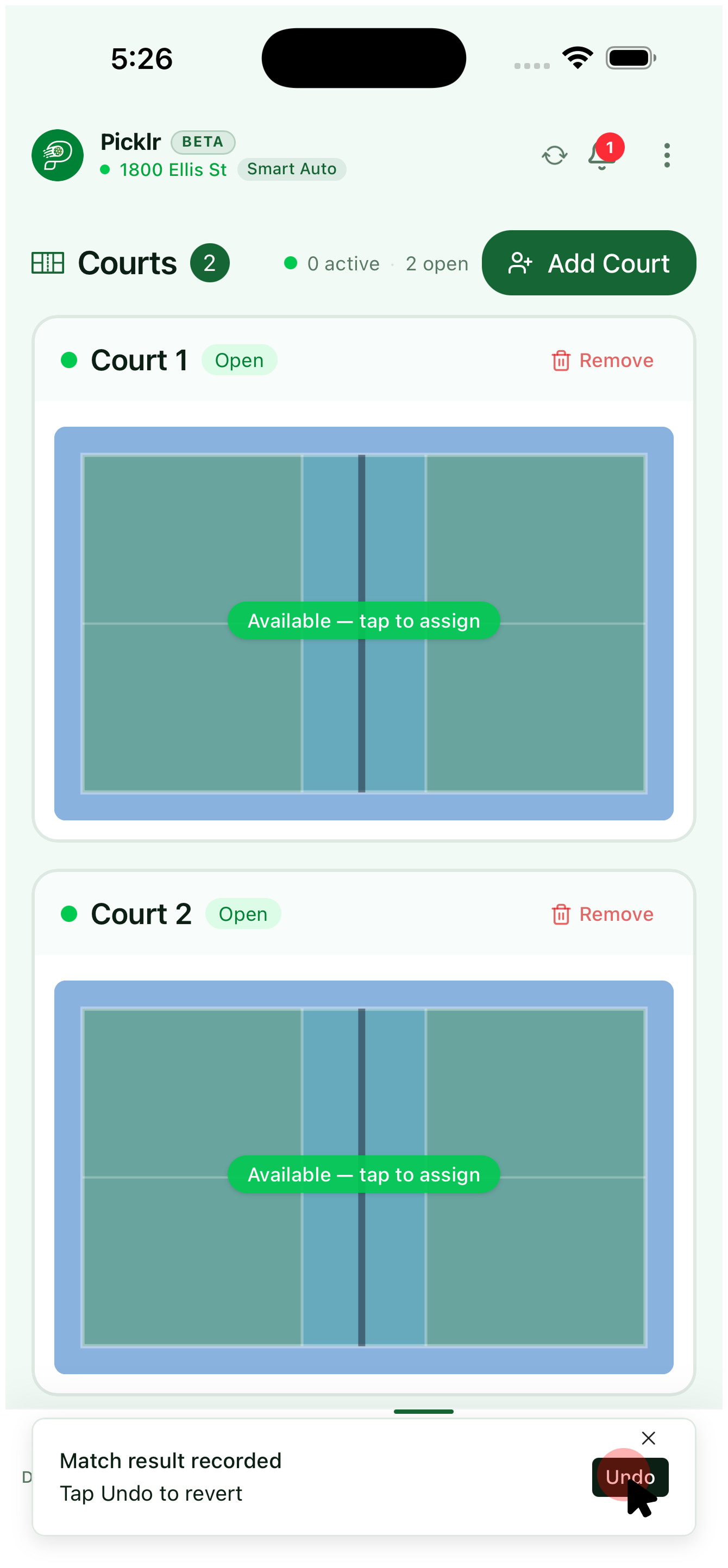
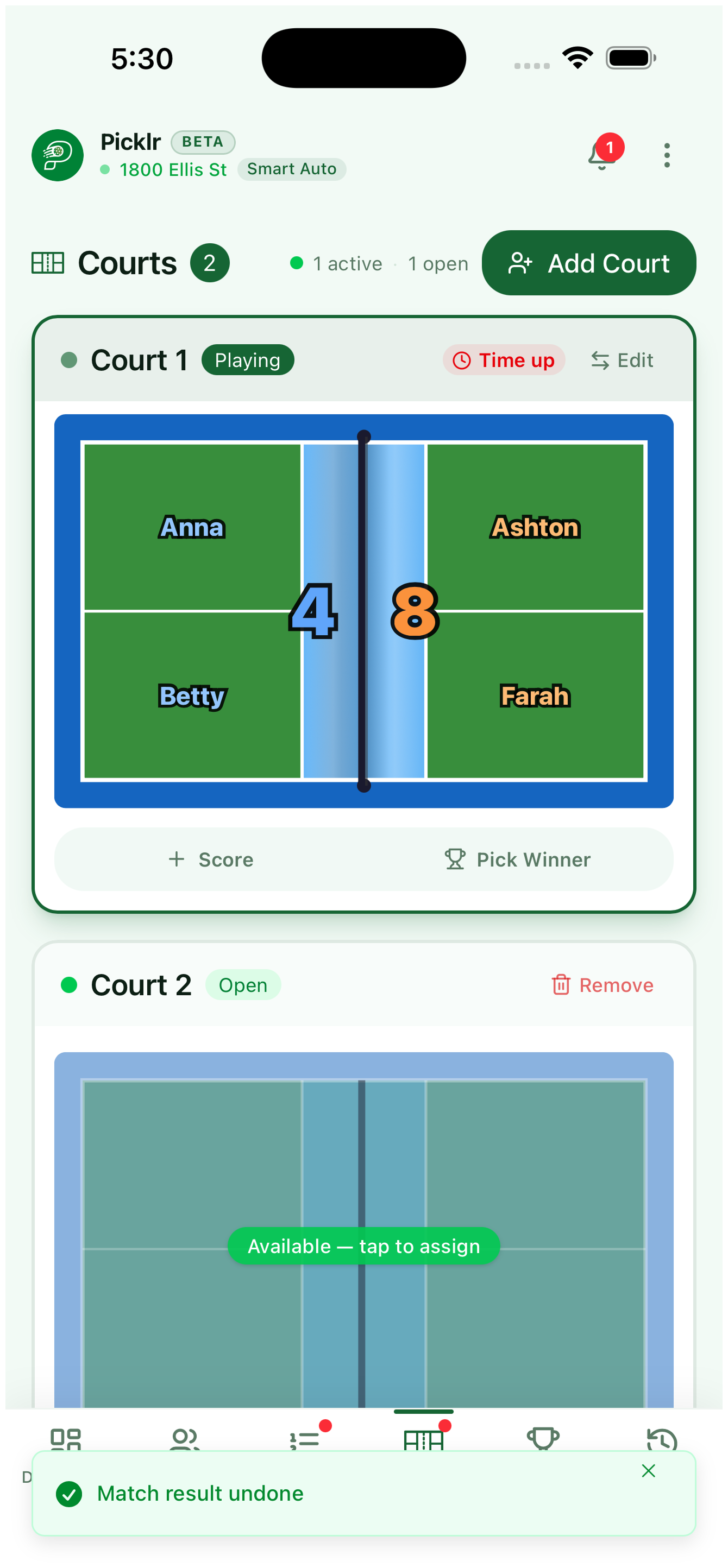
Confirmed the wrong winner? Right after the result is recorded, Picklr shows a "Match result recorded — Tap Undo to revert" toast. Tap Undo and the court jumps back to the live state right before you confirmed — same teams, same score, ready to fix and re-confirm.
16. Send next from queue
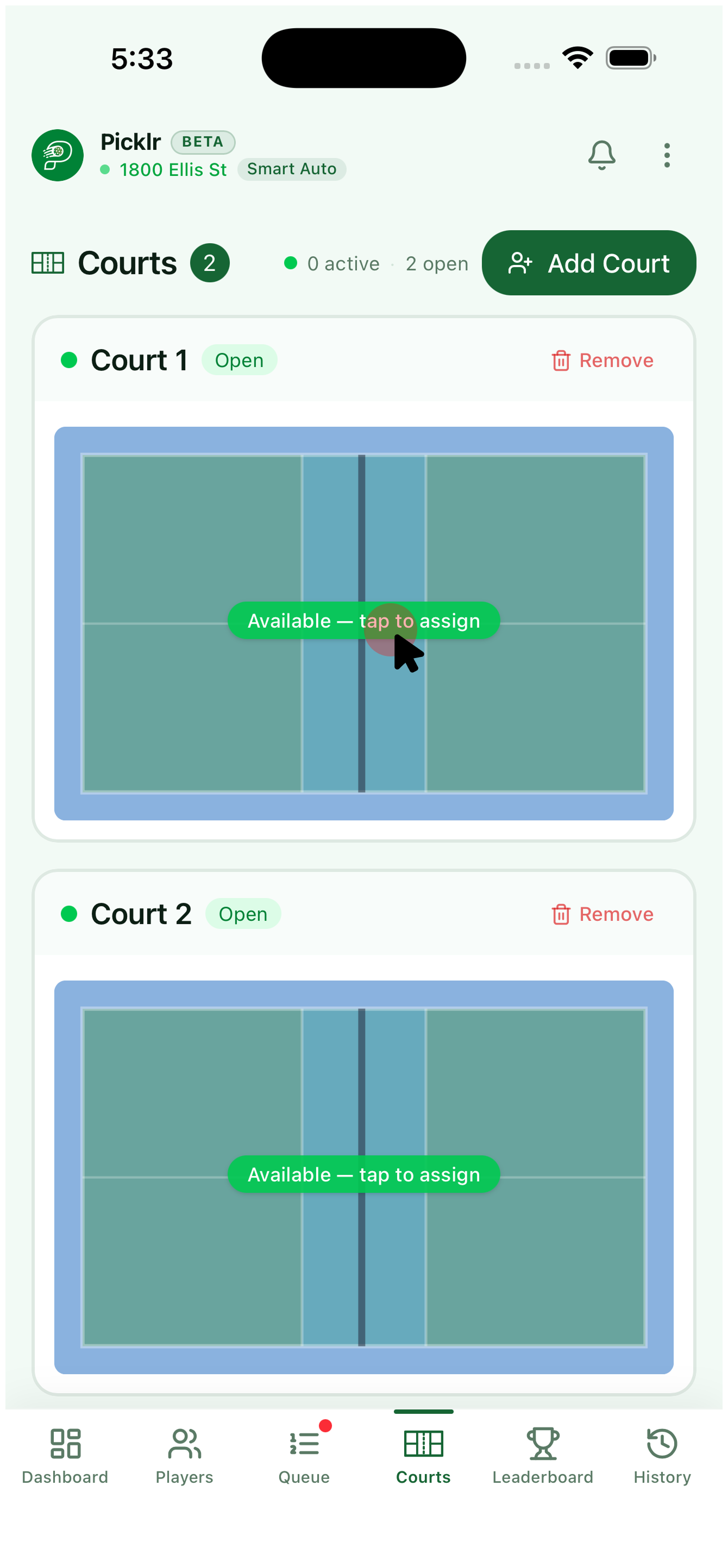
When a court frees up, tap it. Picklr fills it with the next four players from the queue, matched by your active mode.
Stats & history
Track the leaderboard, dive into player details, and fix old matches.
17. Leaderboard
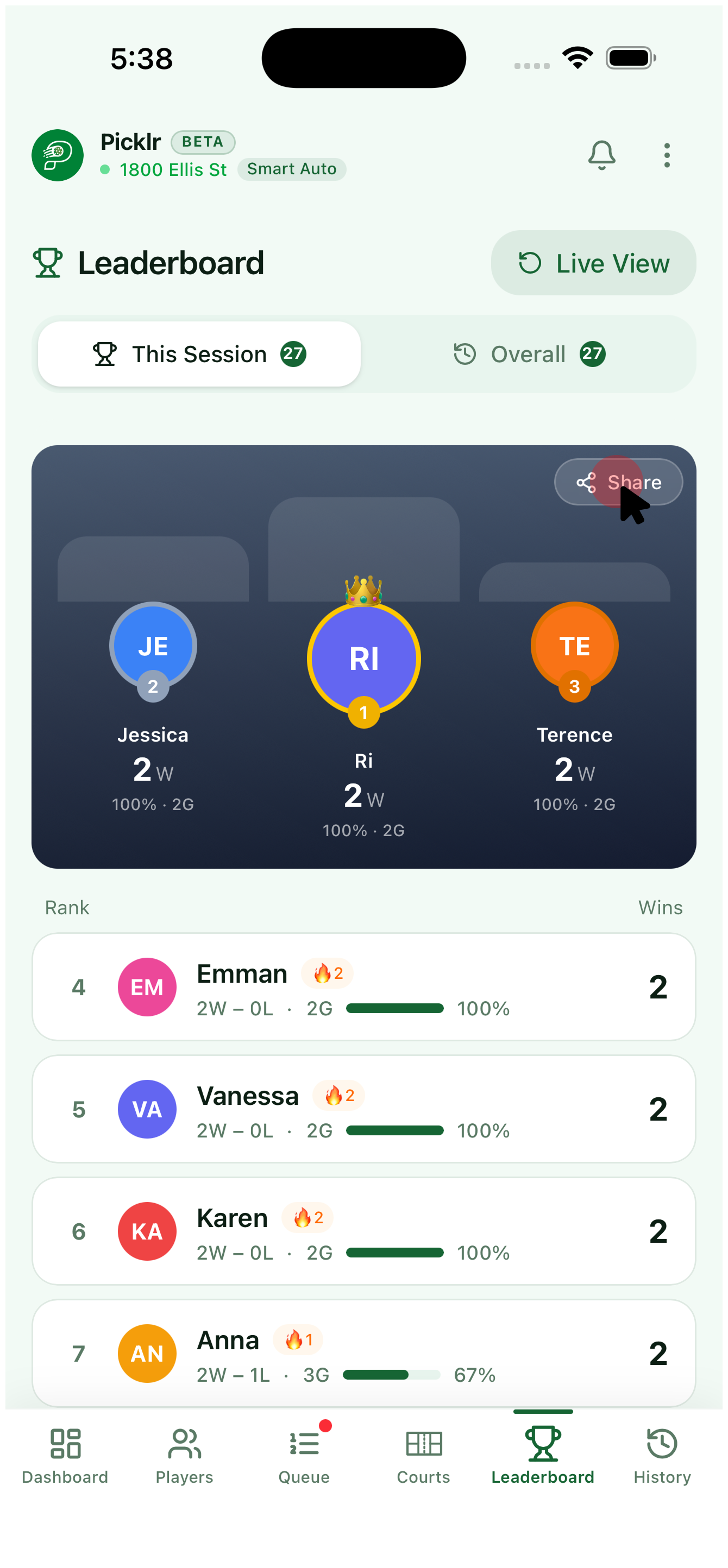
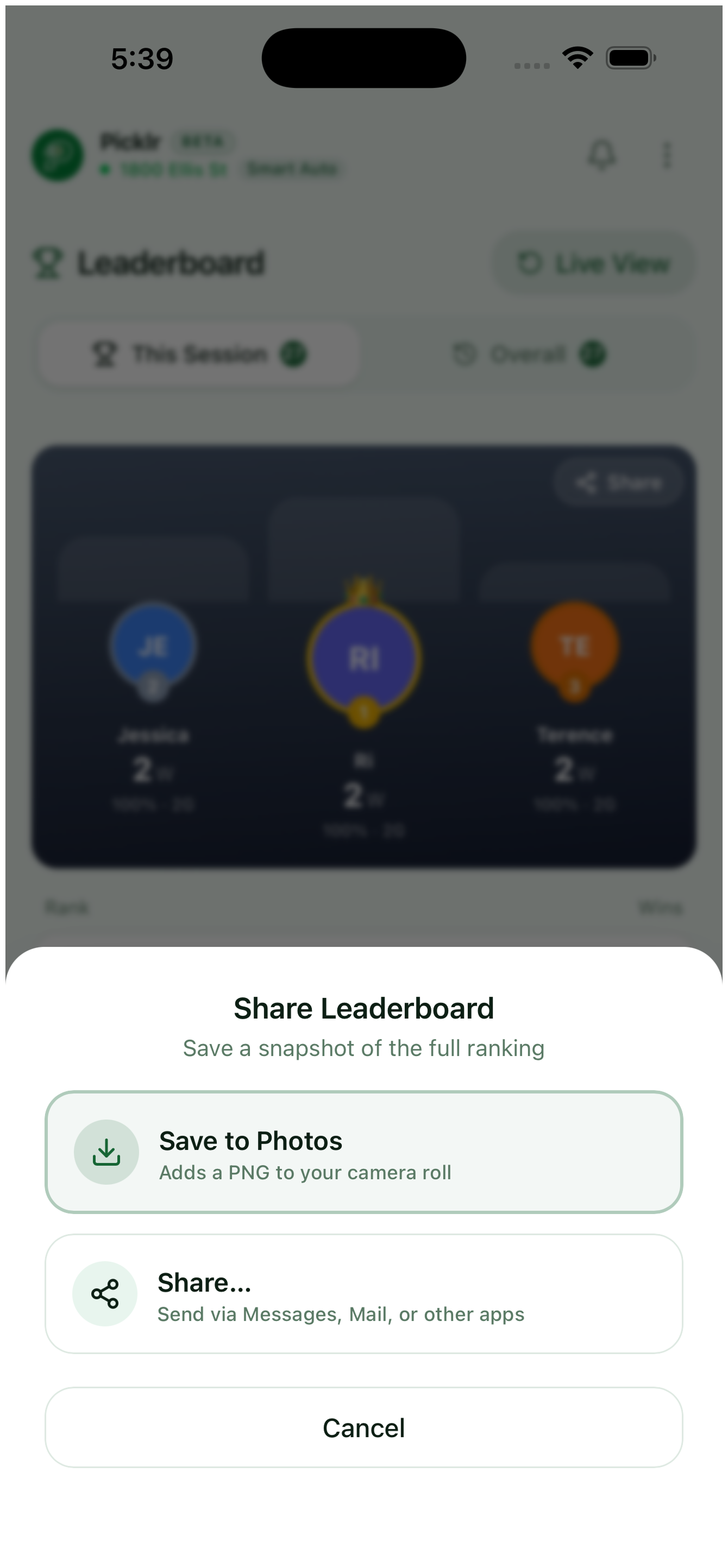
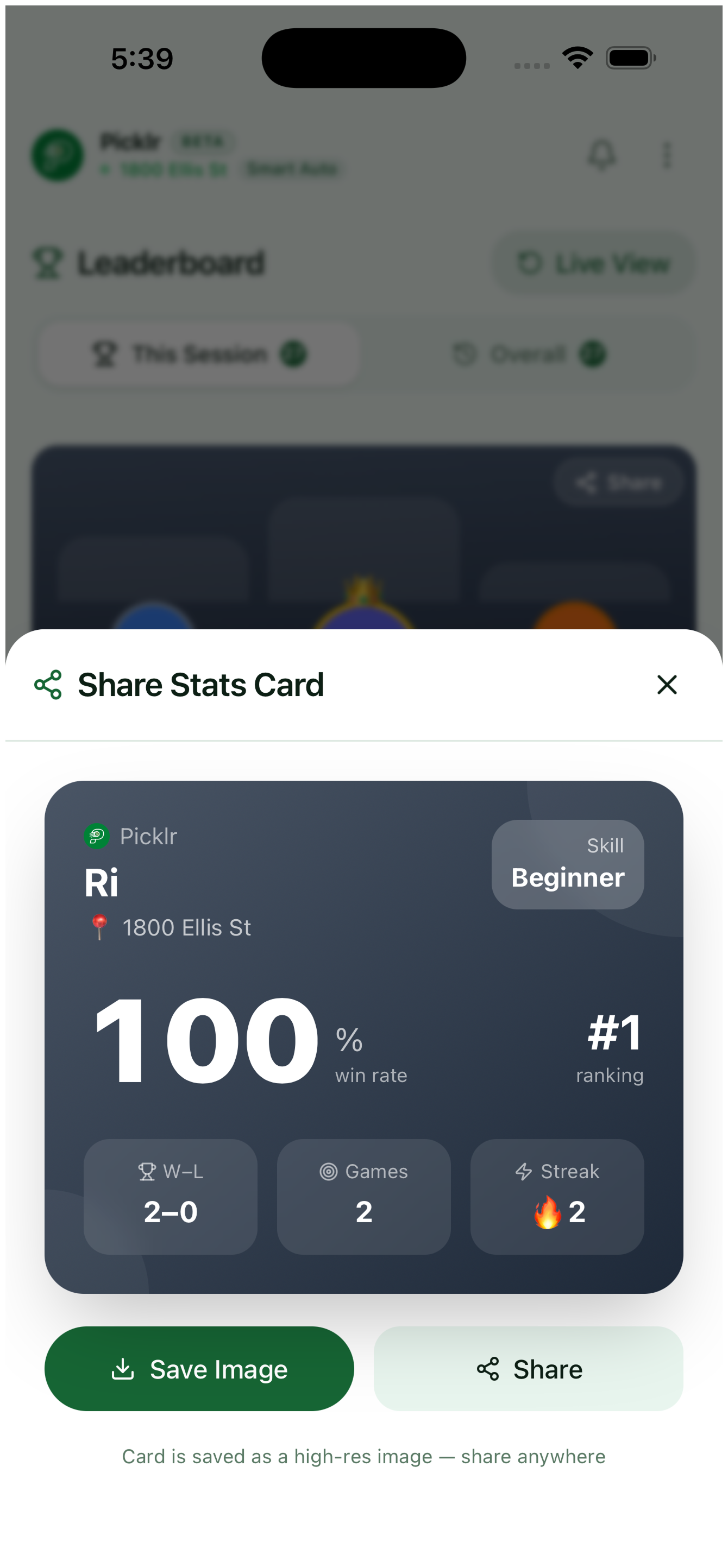
Switch to the Leaderboard tab to see wins, losses, and win rate for every player. Toggle between This Session and Overall to compare. The top 3 sit on a podium and updates flow in real time as matches end. Tap Share to save a clean leaderboard snapshot to Photos or send it via Messages, Mail, or any other app.
18. Player details
Tap any player on the leaderboard to see their full match history for the session — partners, opponents, scores, and outcomes.
19. Match history
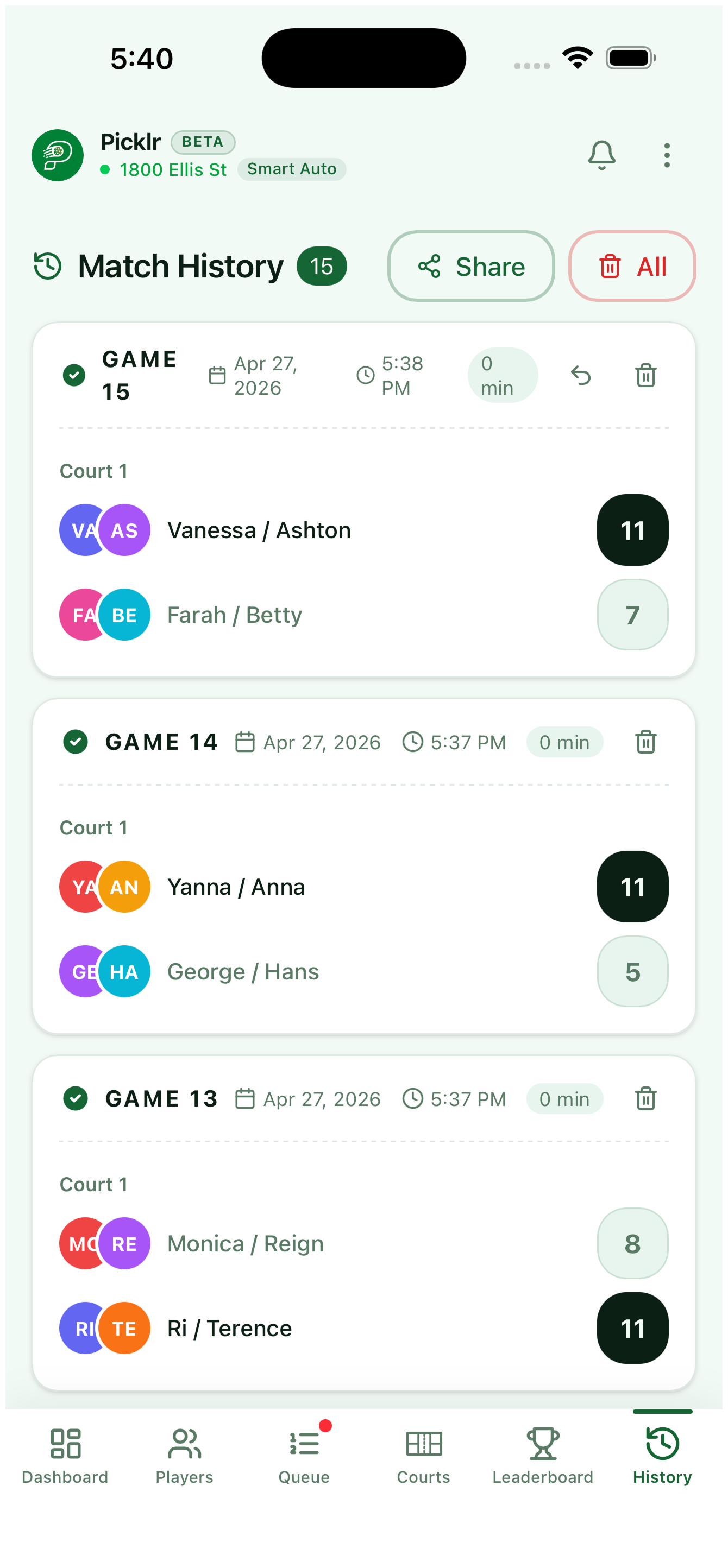
Open the History tab to browse every match in the session. Filter by court, player, or outcome.
20. Edit the score — undo the most recent match
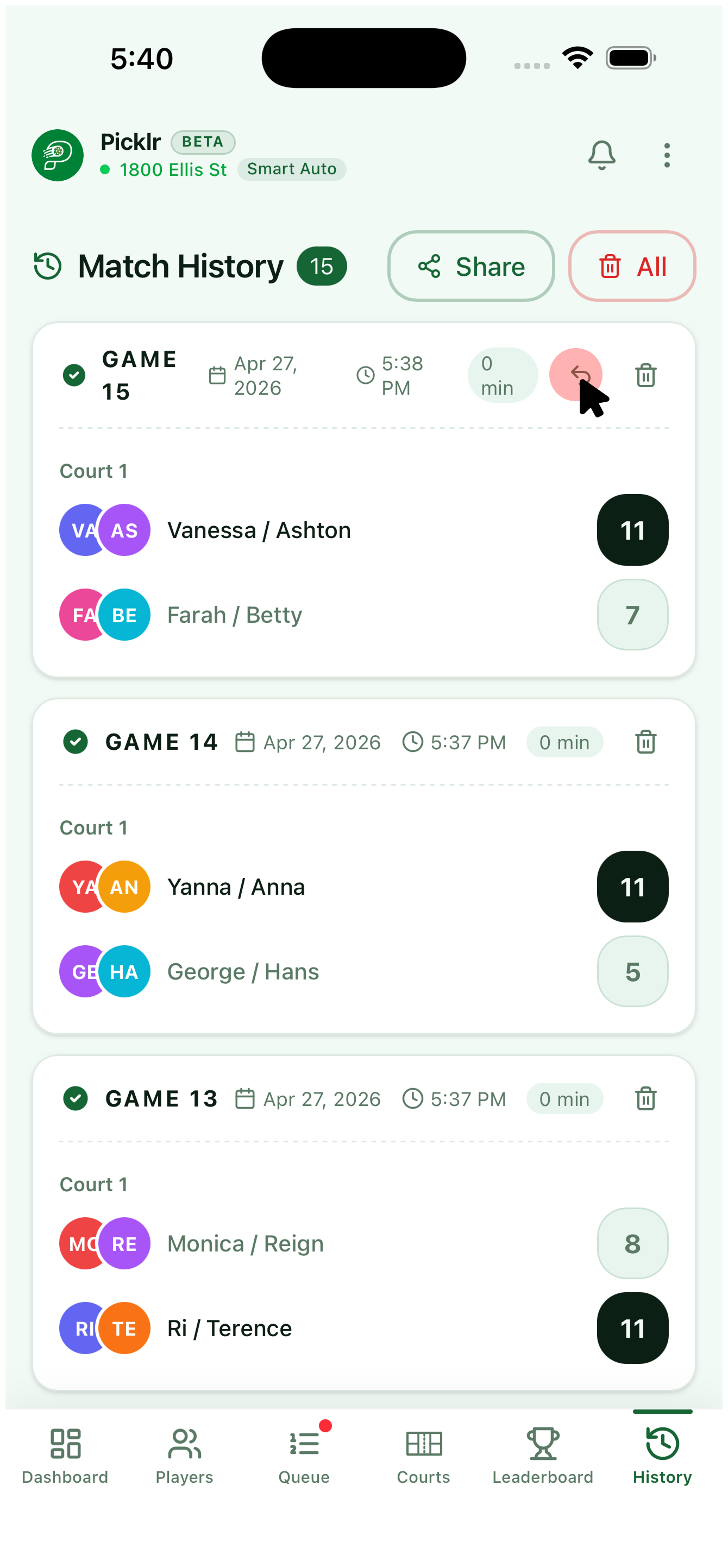
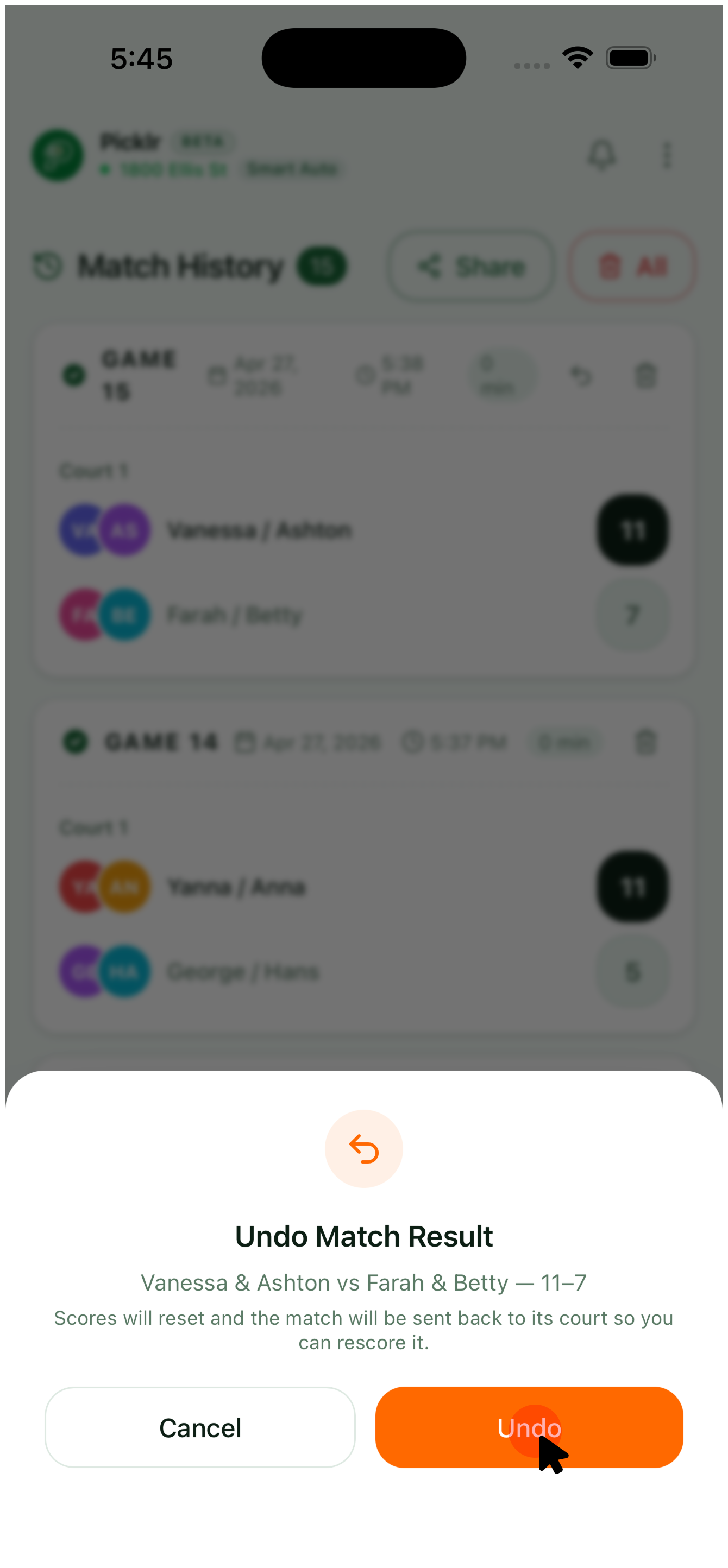
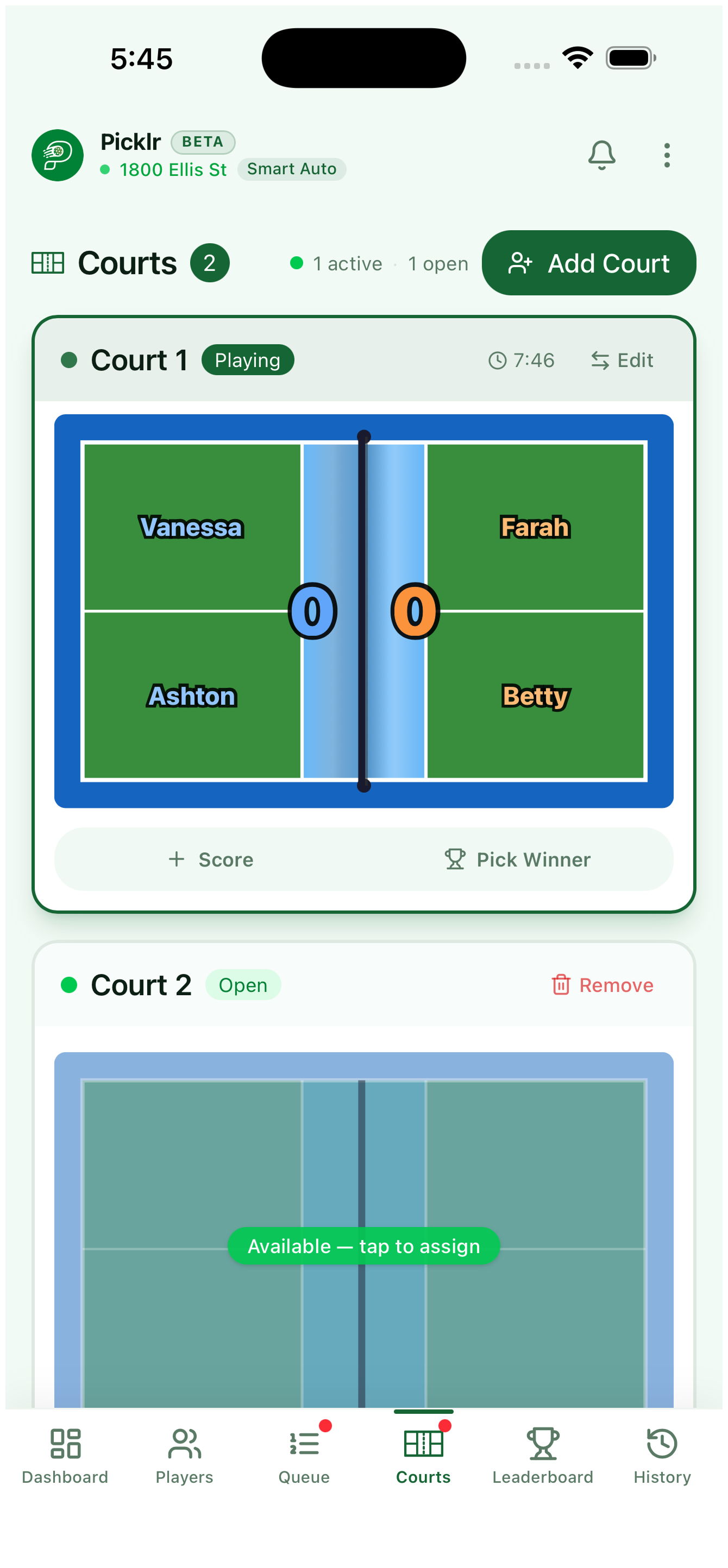
Need to edit, fix, change, or correct the score of a match you already ended? Open the History tab and tap the Undo arrow on the latest game in Match History — only the most recent match can be edited this way. Picklr asks you to confirm, then resets the match back to its court at 0-0 with the same teams so you can re-score it cleanly. The leaderboard rolls back automatically.
21. End the session
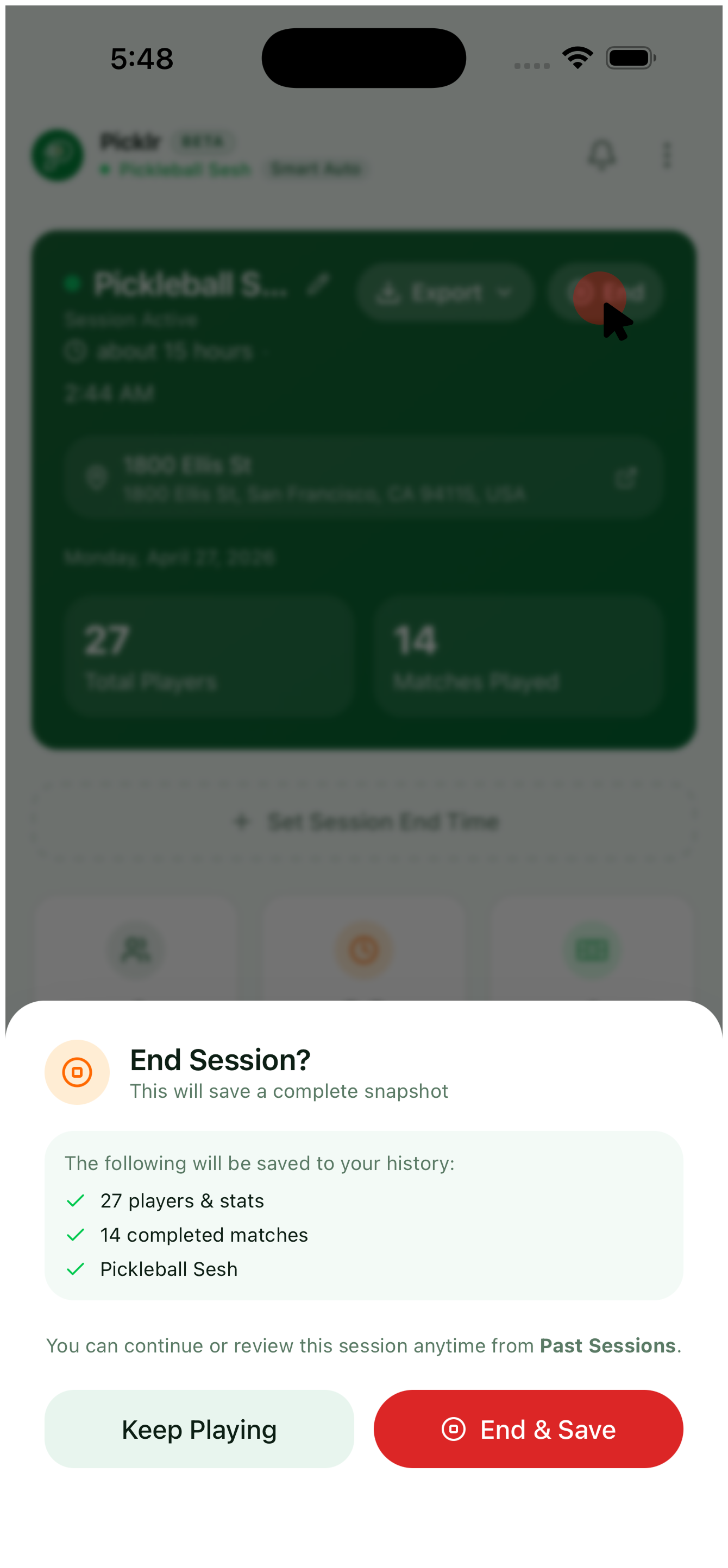
When you're done playing, open the Dashboard tab and tap End Session. Picklr saves a full snapshot — players, matches, courts, and final leaderboard — to your history. You can pick it back up and continue right where you left off any time from the Sessions list.
22. Continue a previous session
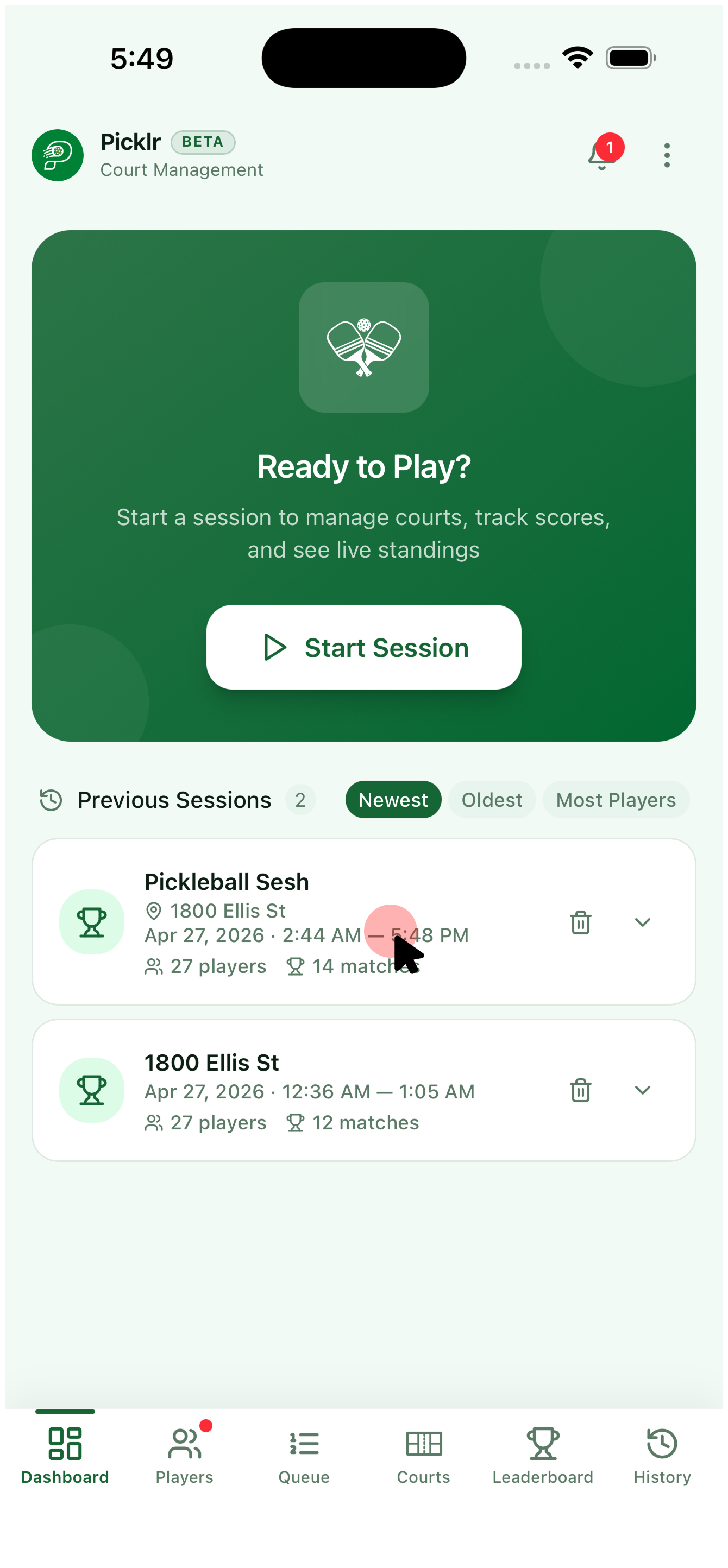
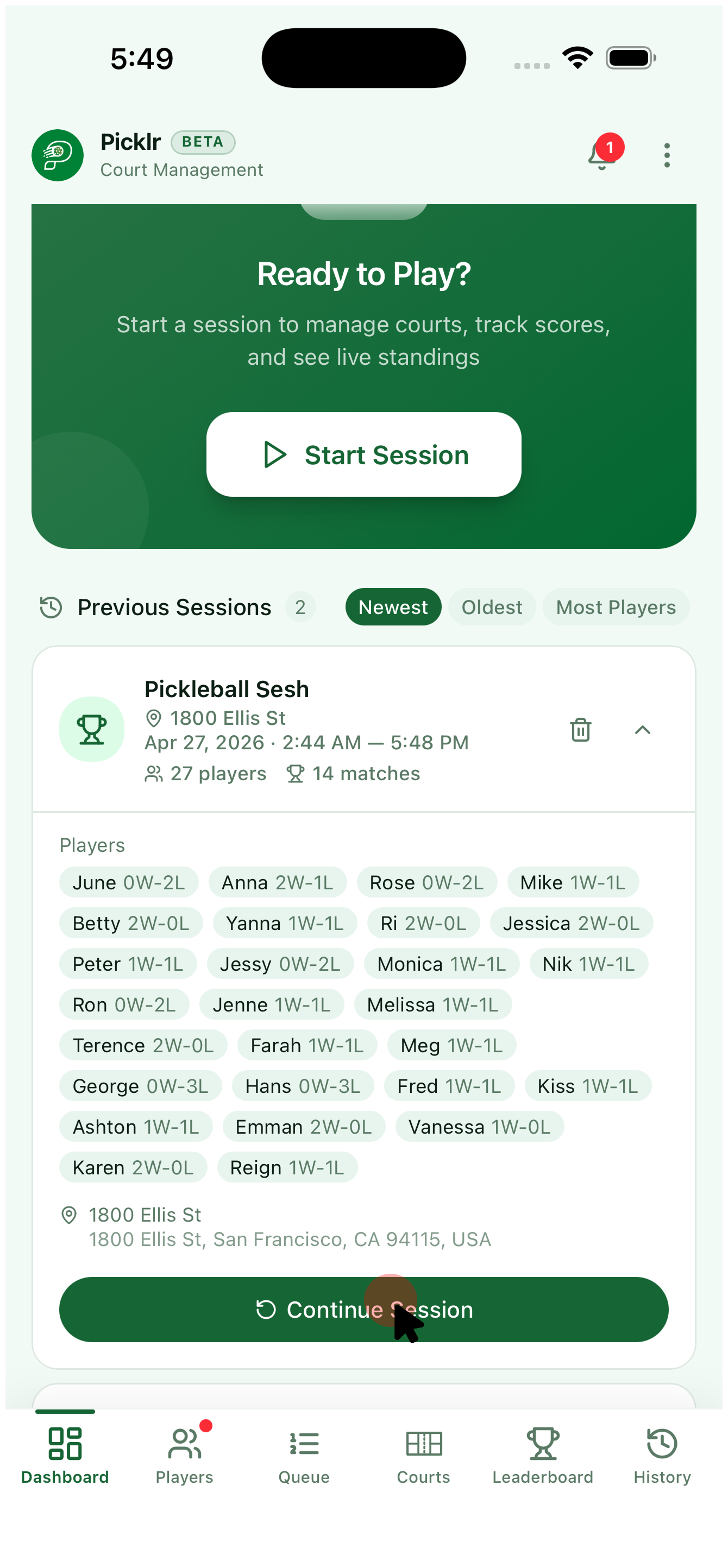
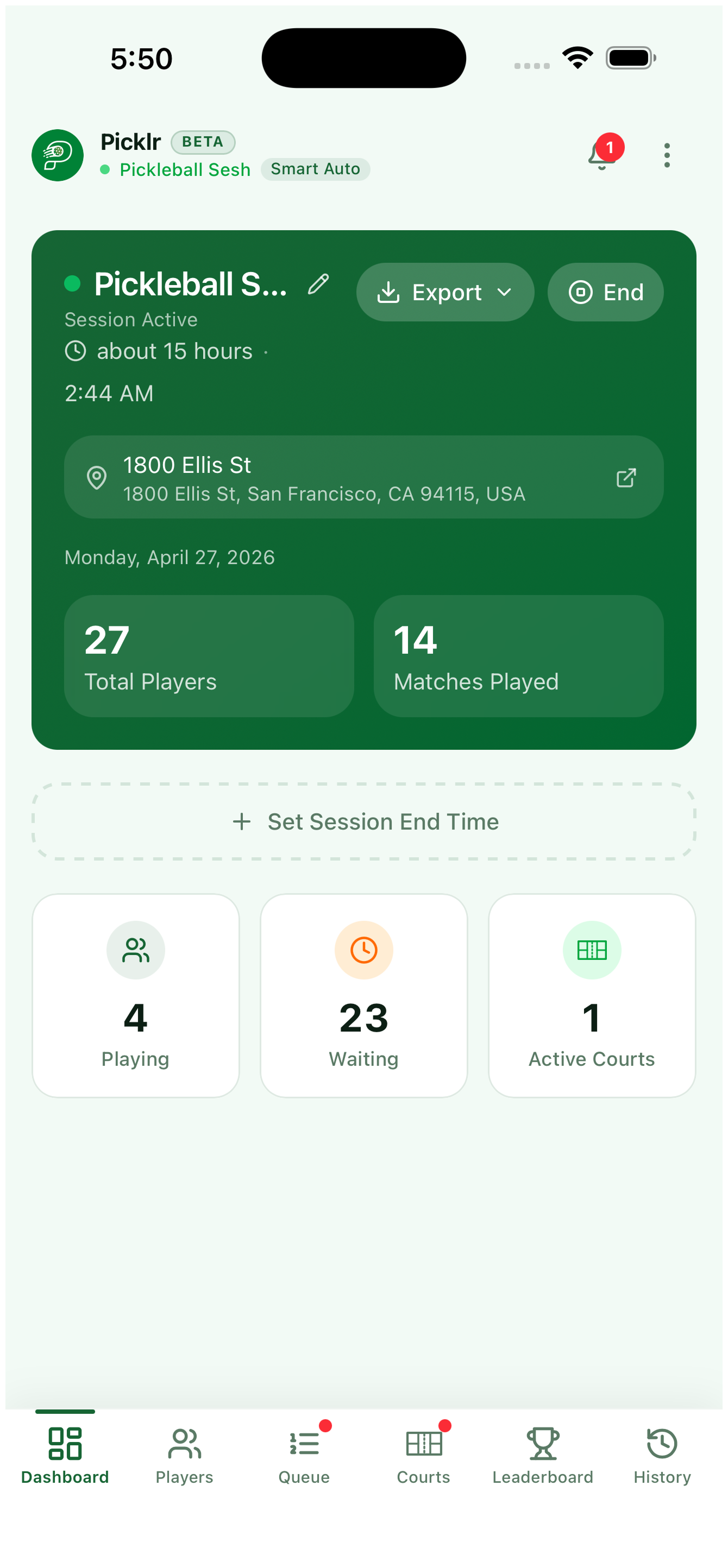
Scroll past Start Session on the Dashboard to find Previous Sessions — every session you've saved with its date, player count, and match count. Tap a row to expand it and see the full roster, then tap Continue Session to jump back in. Picklr restores the full snapshot — players, queues, courts, scores, and leaderboard — so you can pick up exactly where you left off.
Stuck on something?
Email us — we usually reply within 24 hours.